Contents(6)
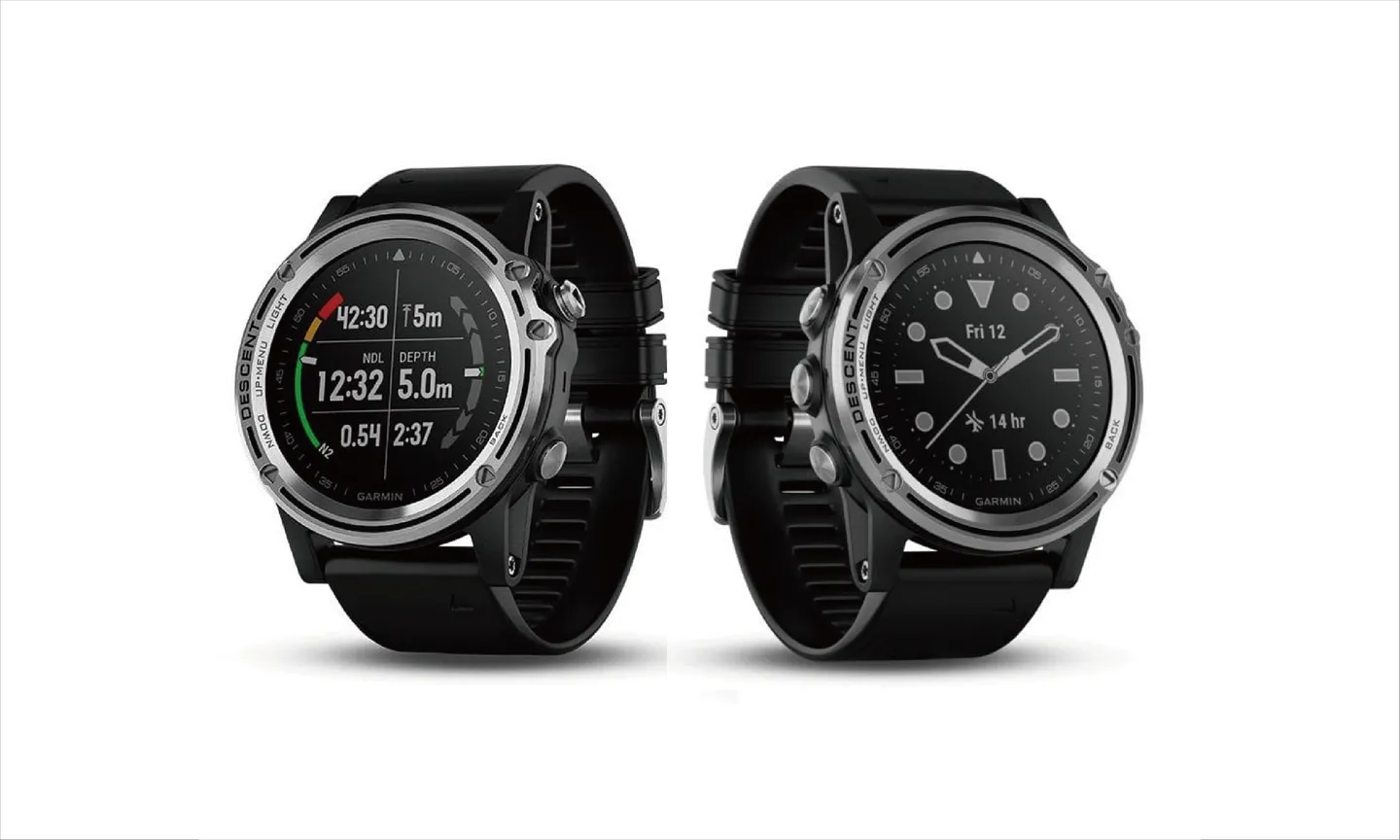
When you first get your hands on a GARMIN Descent MK1, the sheer number of features can feel overwhelming. Without a clear understanding of the buttons and operating logic, it's easy to get frustrated early on. But after spending some time exploring the watch, you'll come to appreciate that because the MK1 offers so much more than a single-purpose dive computer, a unified interface capable of handling all those functions is absolutely necessary.
This article introduces a few key elements from a diver's perspective, with the goal of helping fellow divers get the most out of the powerful MK1. A big thanks to a friend who lent me their MK1, giving me the chance to wear this premium dive computer for a while. During that time I took it on a trip to Green Island and several dives at Chaoching Park, which inspired me to write this piece.
GARMIN Descent MK1 Button Logic
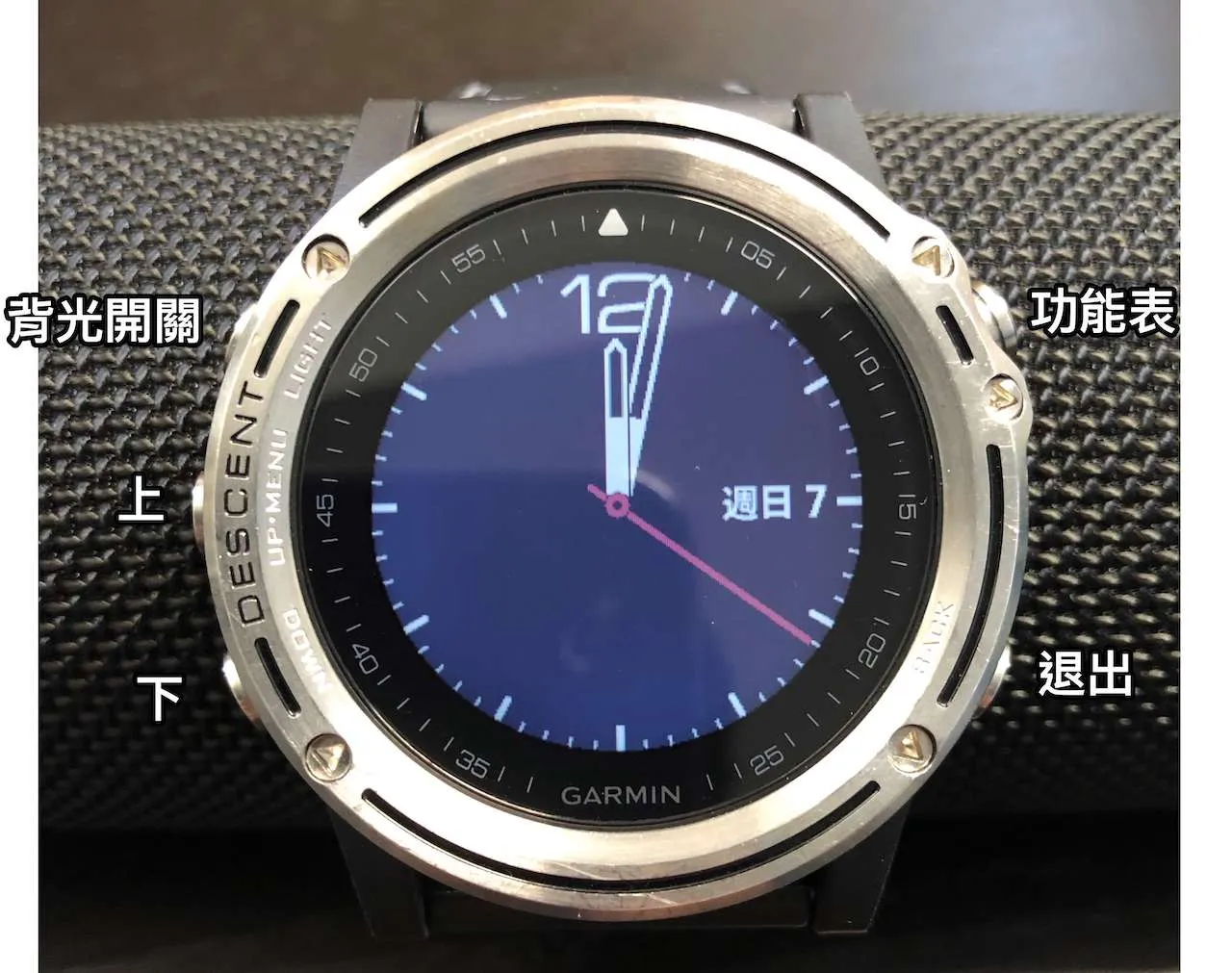
Front view of the watch
- Top-left: Backlight toggle / Long press for shortcut menu
- Middle-left: Up / Widget / Long press for Settings
- Bottom-left: Down / Widget
- Top-right: Activity menu
- Bottom-right: Back / Exit
The first thing that feels counterintuitive when you pick up the MK1 is that the Up button is on the middle-left side. Once you get used to it, navigation becomes much smoother. Within any activity, long-pressing the Settings button gives you access to additional settings for that function.


Activity Menu and Favorites
Press the top-right button to open the activity menu. The upper portion with the white background is your Favorites, while the lower portion lists other activities. At the very bottom you can add more activities — the watch comes with a wide variety of built-in options, and if your sport of choice isn't included (say, horseback riding), you can add it yourself.
- Add / Sort / Remove / Rename items in the menu and Favorites. Activities you don't need right now can be safely deleted — you can always add them back later.
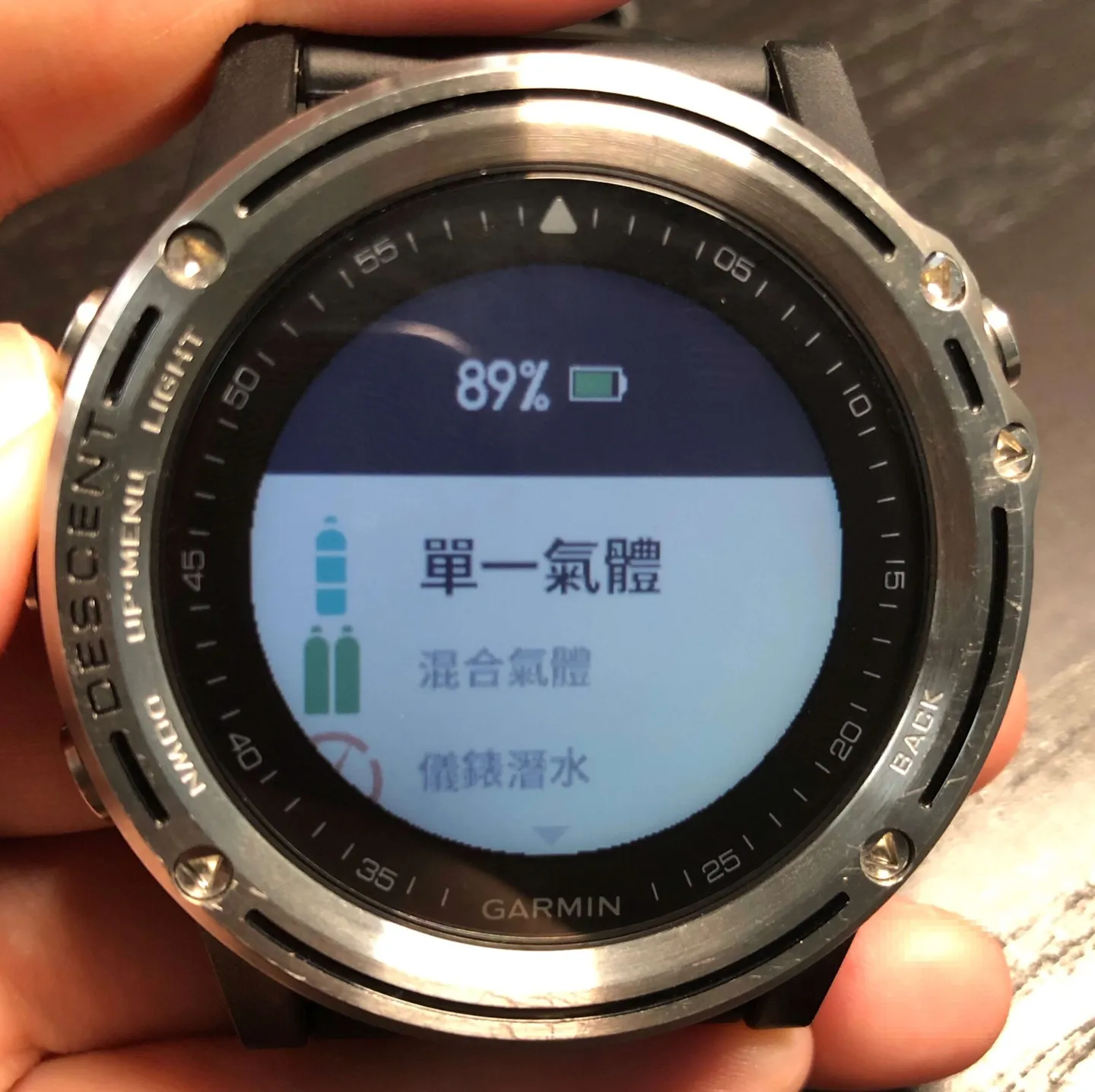
- Pair with your phone to type in Chinese characters
When I first discovered you could rename activities, I was puzzled — how on earth would you type Chinese characters on a watch? That seemed like a real challenge. When you enter the edit screen there is a brief prompt telling you that you can enter text from your phone, but roughly 80% of people probably won't catch it before it disappears. Another 80% will feel too nervous to delete or change anything and just back out immediately — or accidentally erase a character with no way to undo it, leaving "Single-Gas Scuba" forever renamed to "Single-Gas Scub."
Garmin's engineering team is actually quite impressive. I was genuinely delighted when I discovered this feature: when the watch is connected to your phone and you navigate to a text-input field on the watch, the Garmin Connect app on your phone automatically pops up a text-input interface. The experience is about 87% as smooth as typing on an Apple TV (high praise). If it doesn't pop up automatically, open the Garmin Connect app on your phone, pair your watch, then go to Settings > Quick Input and you can type directly from your phone to the watch.
Press the top-right button to open the activity menu > Long press the middle-left Settings button on Single-Gas Scuba to open its settings
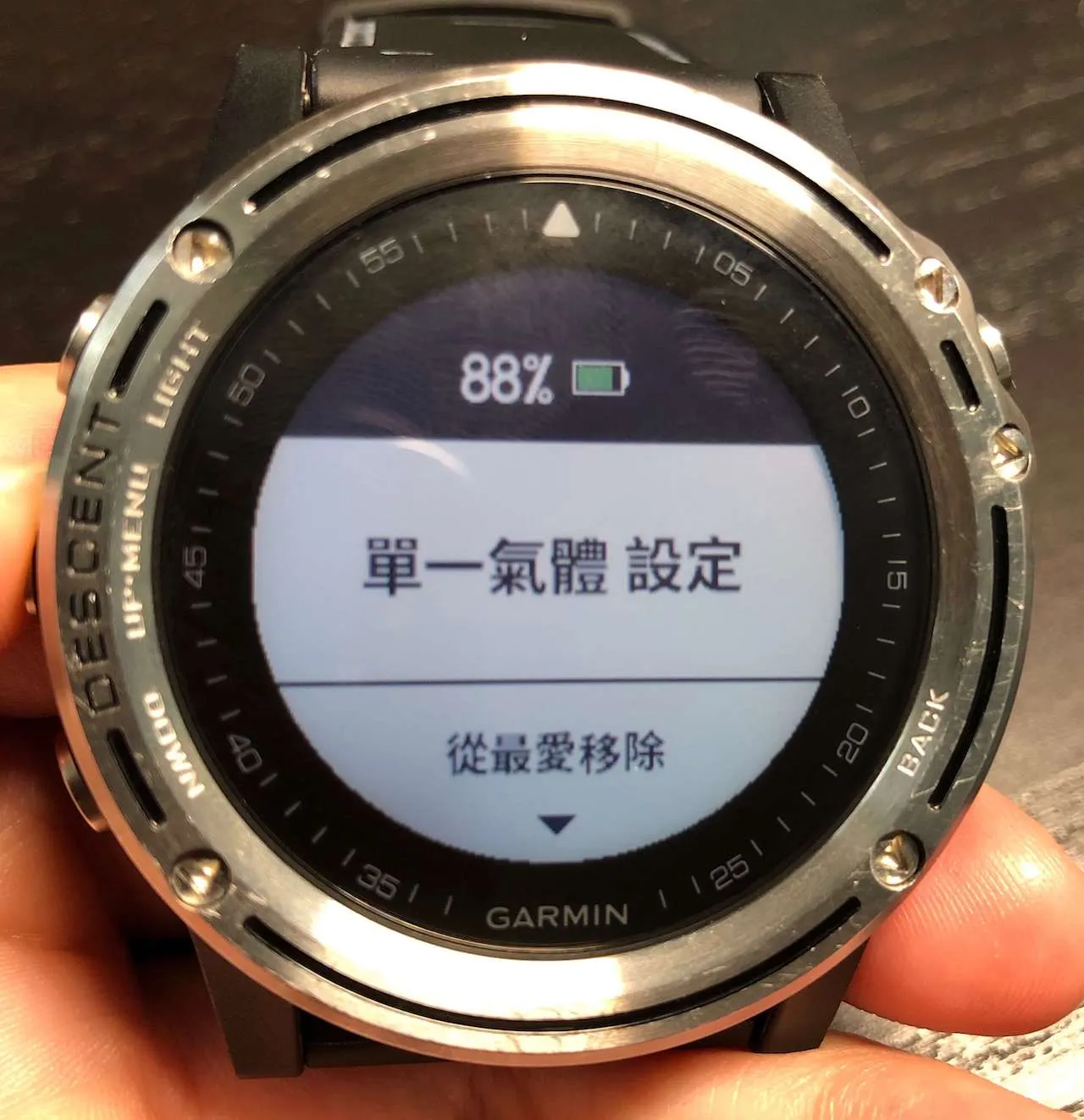
Enter the Single-Gas Scuba settings
Scroll down and select Rename
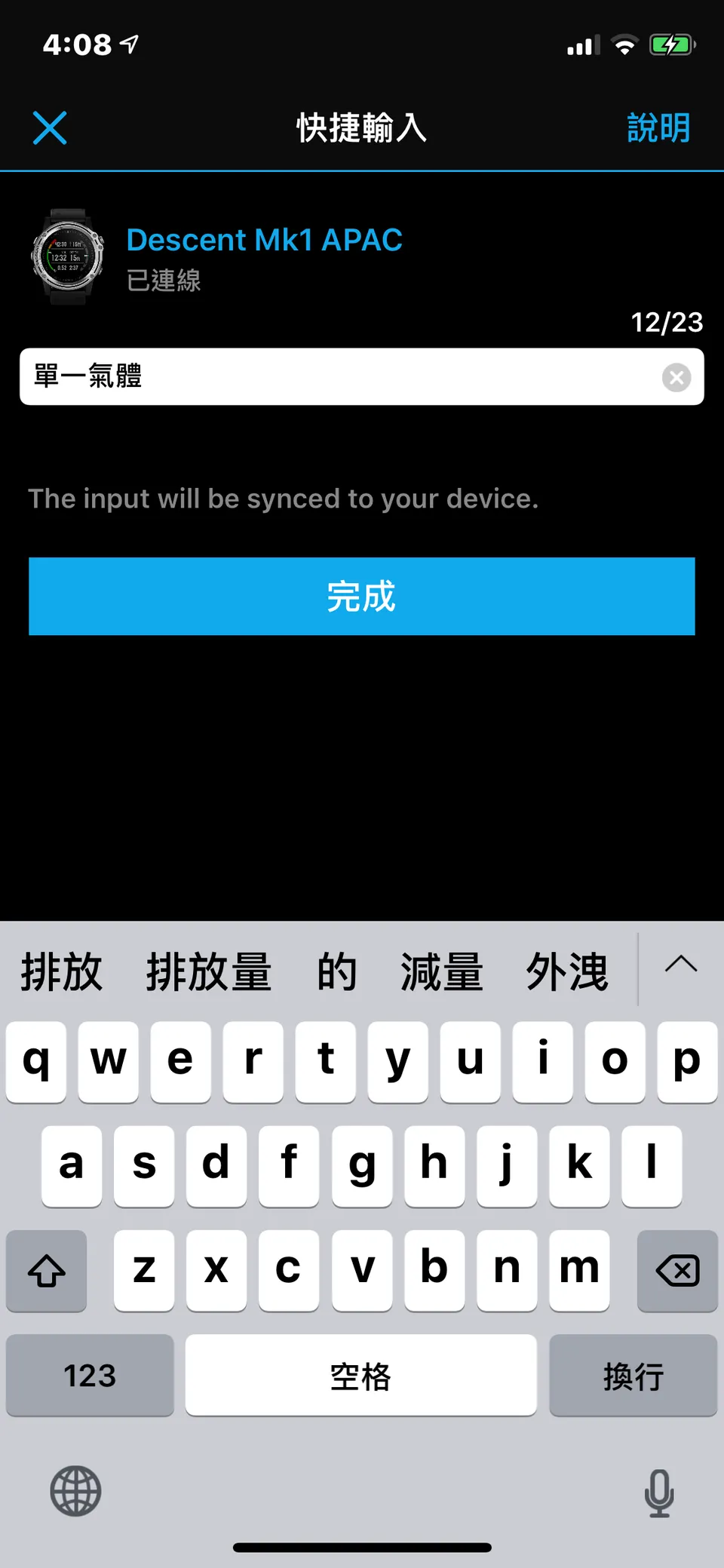
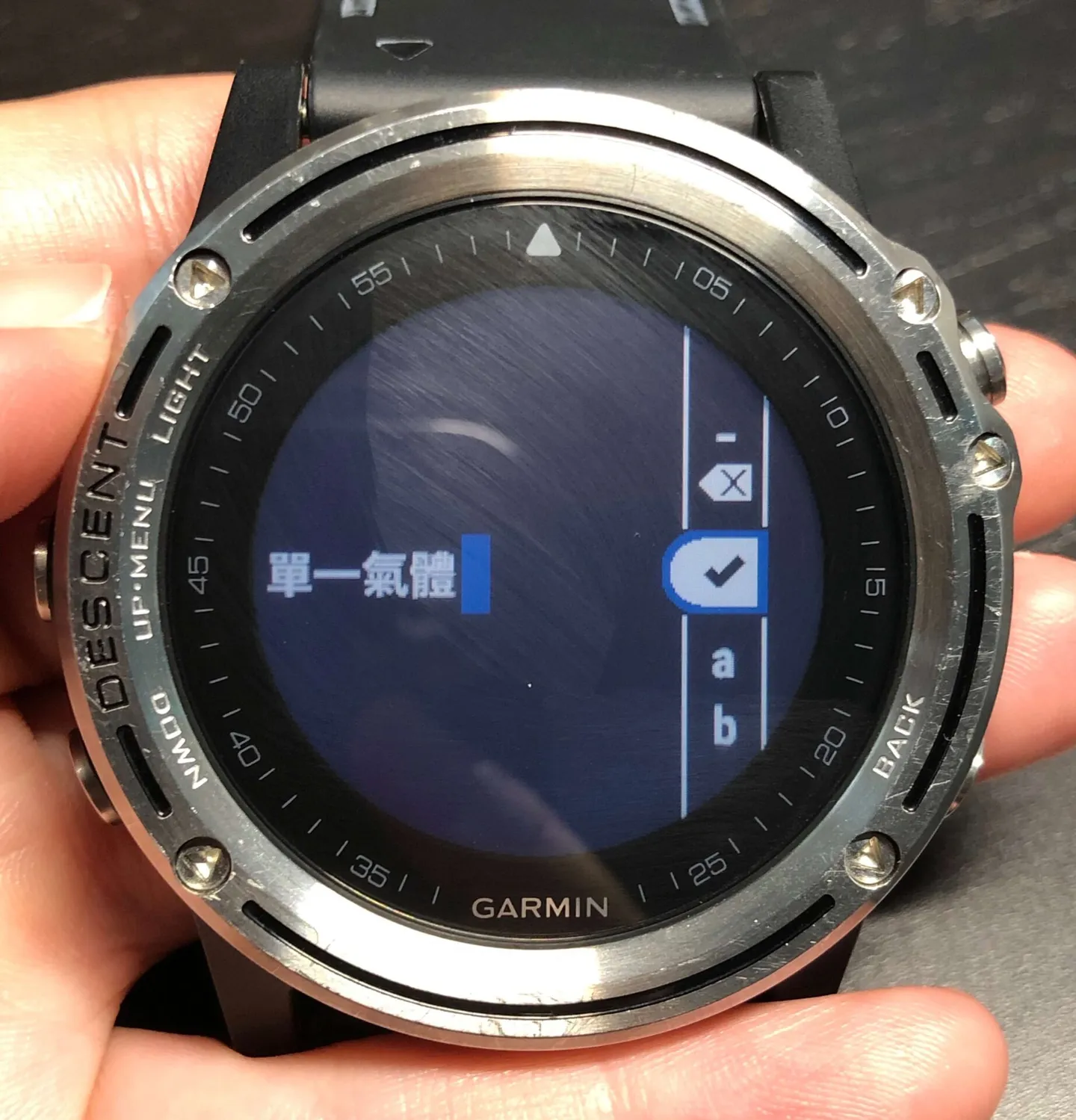
Widgets
Widgets are the other major interface area of the MK1. Pressing the Up or Down button cycles through them — think of them as extra home screens. Here are a few particularly useful ones for divers.
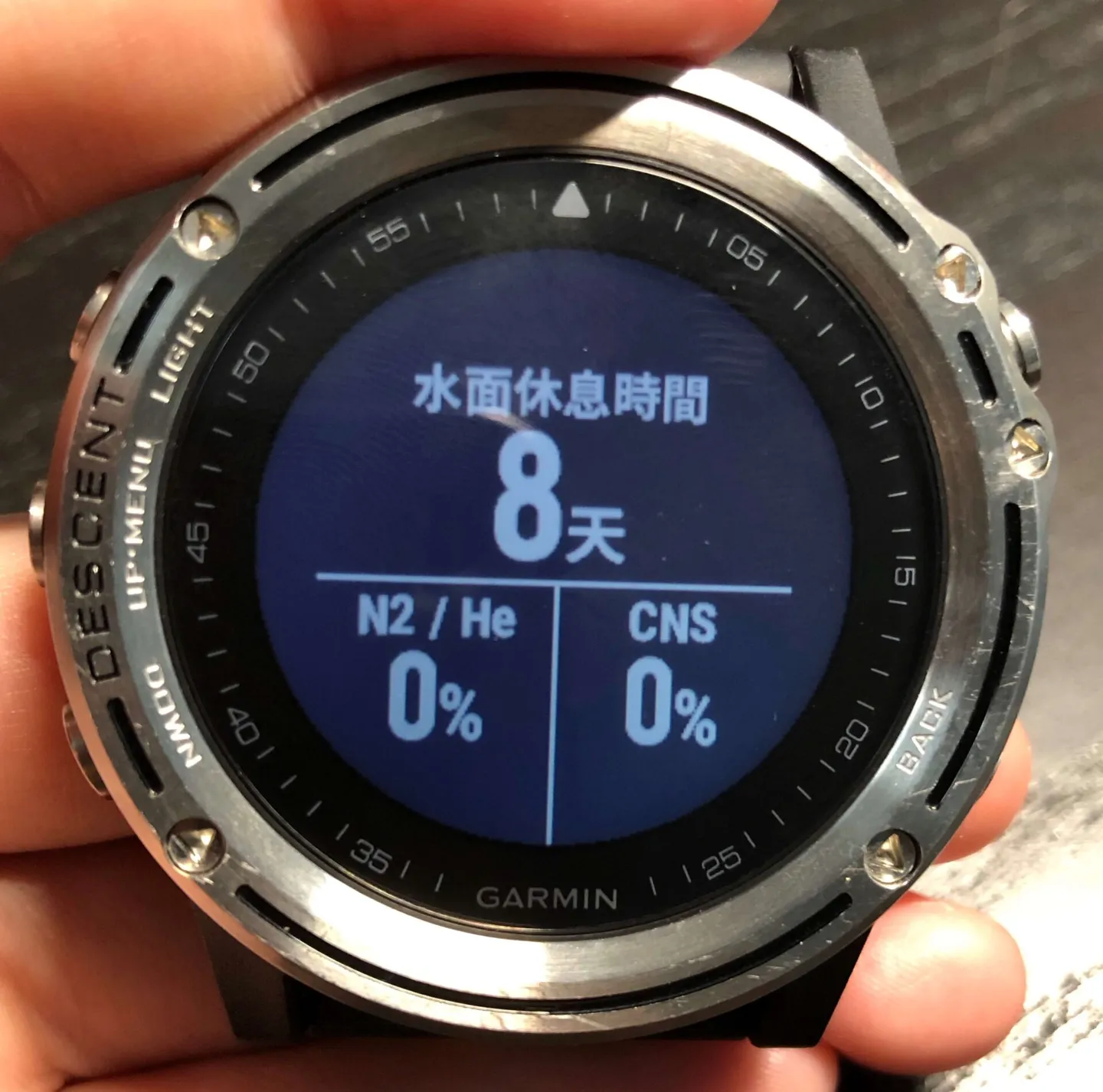
Surface interval time
- Surface interval time
- Dive log
- Weather information
- Wind and waves
- Many more sport and health-related widgets are available — press Add to include them.
- A personal suggestion to Garmin: it would be great if the tide function were added as a widget too. Being able to check whether the tide is coming in or going out at a glance would be really helpful when deciding when to get in the water.
Dive Functions
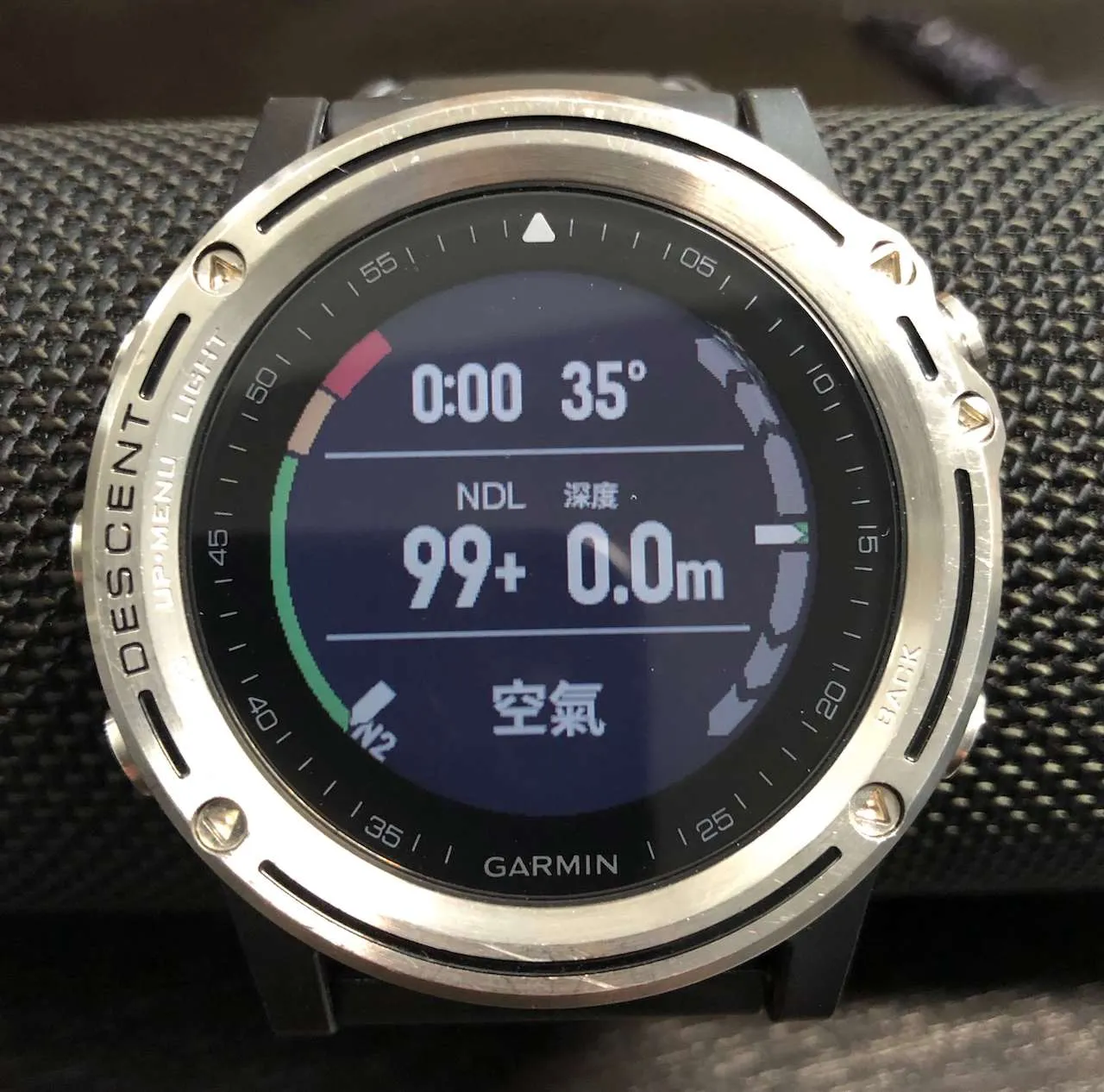
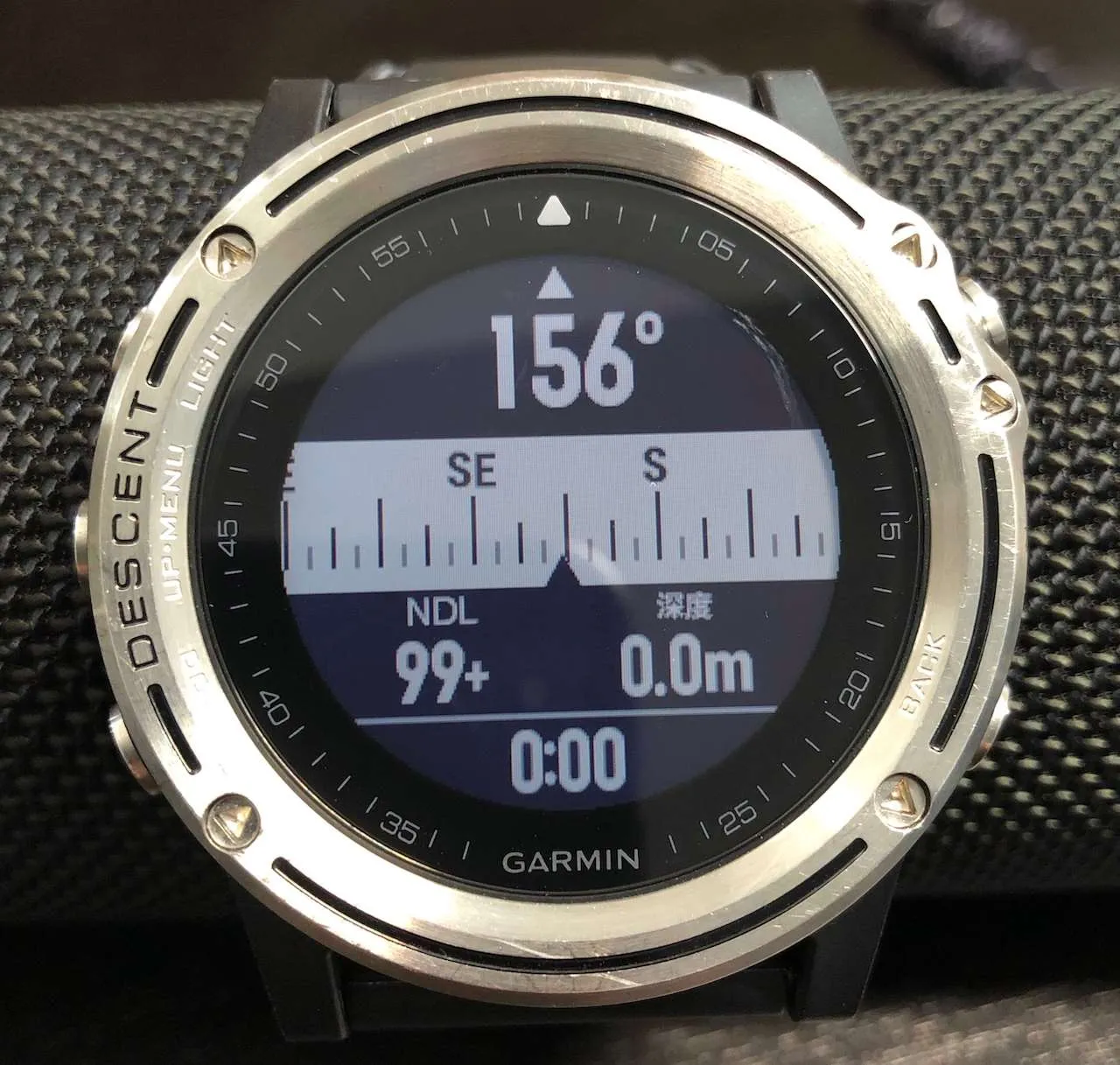
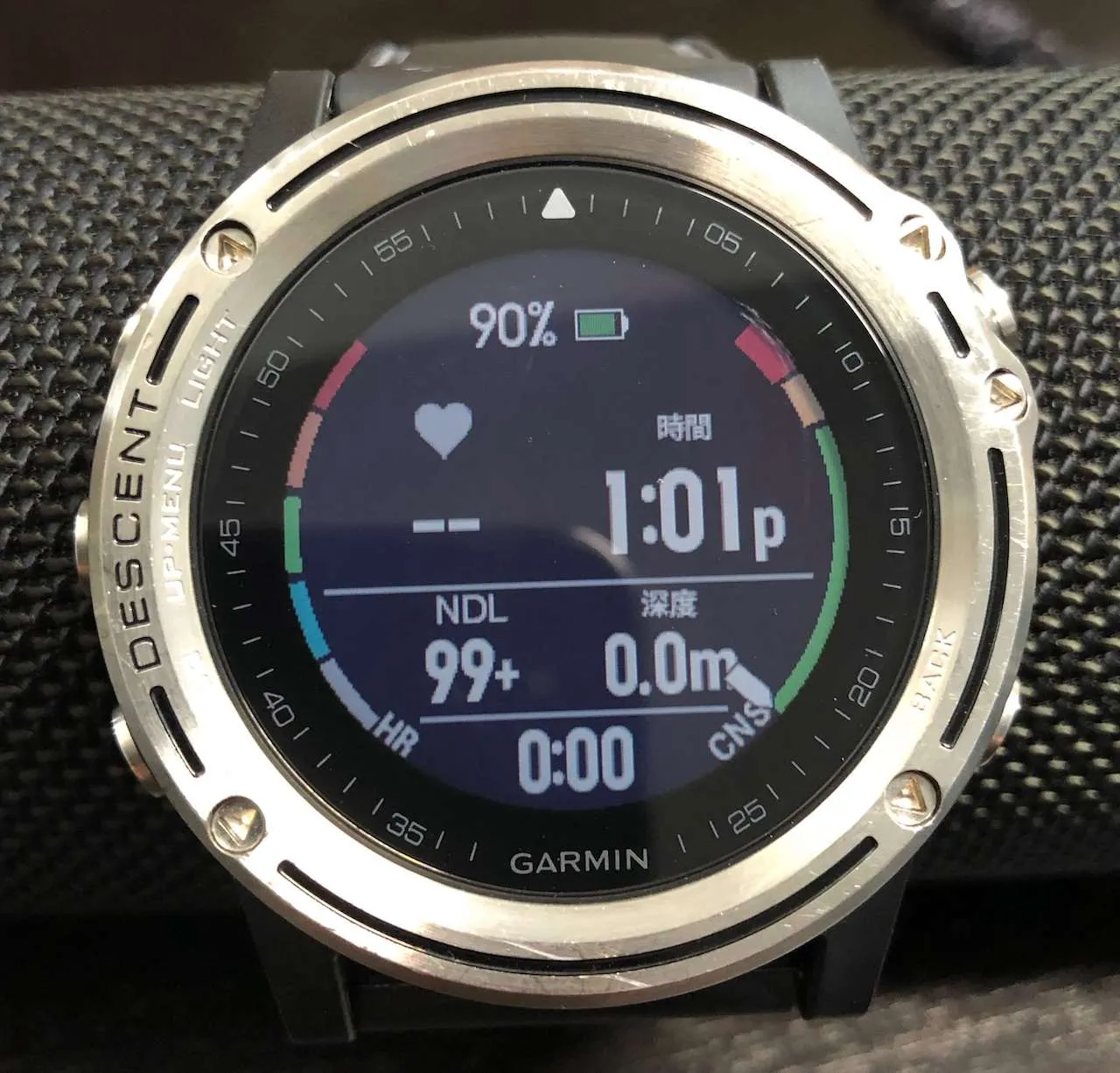
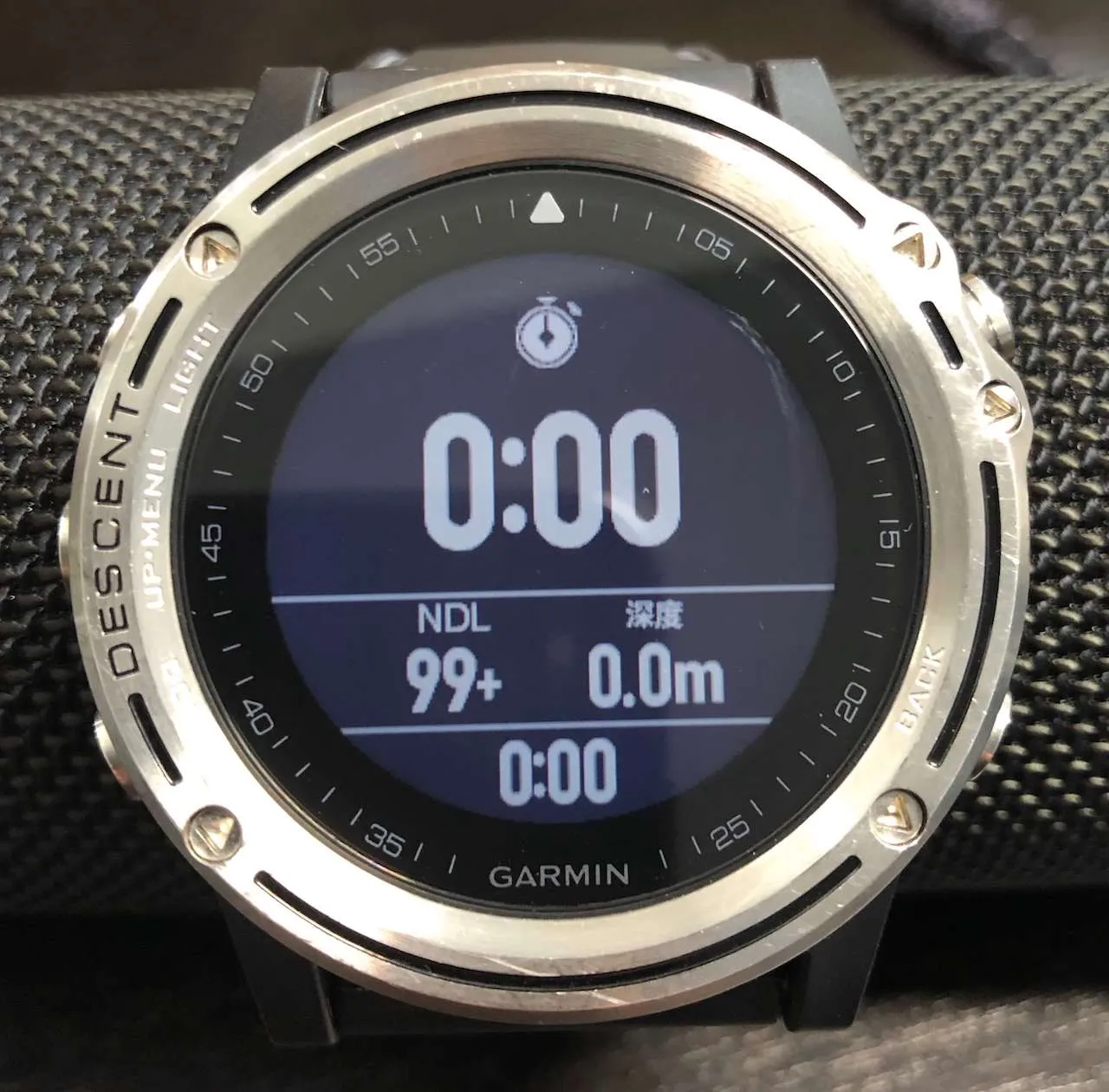
Watch faces displayed during a dive activity:
- Timer — the standard underwater display screen we're all familiar with on a dive computer.
- On the compass screen, pressing the top-right button marks a bearing; pressing it again lets you choose to lock to that heading or clear the bearing mark.
- The standard dive computer screen with the current time added.
- Stopwatch.
- There are four built-in watch faces; you can choose which ones to use during a dive and set their order.
- How to configure: Activity menu > Select Single-Gas Scuba > Long press Settings > Enter Single-Gas settings > Go to Training Pages. Press the top-right button to edit and reorder; scroll down to the plus sign to add a new training page.
- Double-tap to switch screens: When I first received the watch, the double-tap screen switching feature was enabled by default. The sensor seemed too sensitive, though — every time I raised my wrist to check my depth underwater, the display had jumped to a different screen. At first I thought I was accidentally pressing something, but eventually realized it was switching on its own. I'd recommend turning this off if you have the same problem. In dive mode you can simply press the bottom-left button to switch screens anyway.
- Setting nitrox
- Go to the Single-Gas Scuba page, press the bottom-left button to enter edit mode, and you can change the gas mix settings.
- Underwater alerts
- You can set custom depth and time alerts underwater. Each dive mode has its own independent alert settings, so feel free to experiment.
- For more underwater alert options, refer to the official Garmin manual.
App
In this day and age, a companion app for a wearable device has become standard. The watch screen is small, after all, so being able to review your dive log and access more features on your phone is incredibly convenient. But just as the watch itself is powerful and complex, Garmin Connect is equally feature-rich. Unlike dive log apps that emphasize social features, Garmin's app focuses primarily on personal training records.
Here are a few of the main dive-related screens in the app.
- Dive log
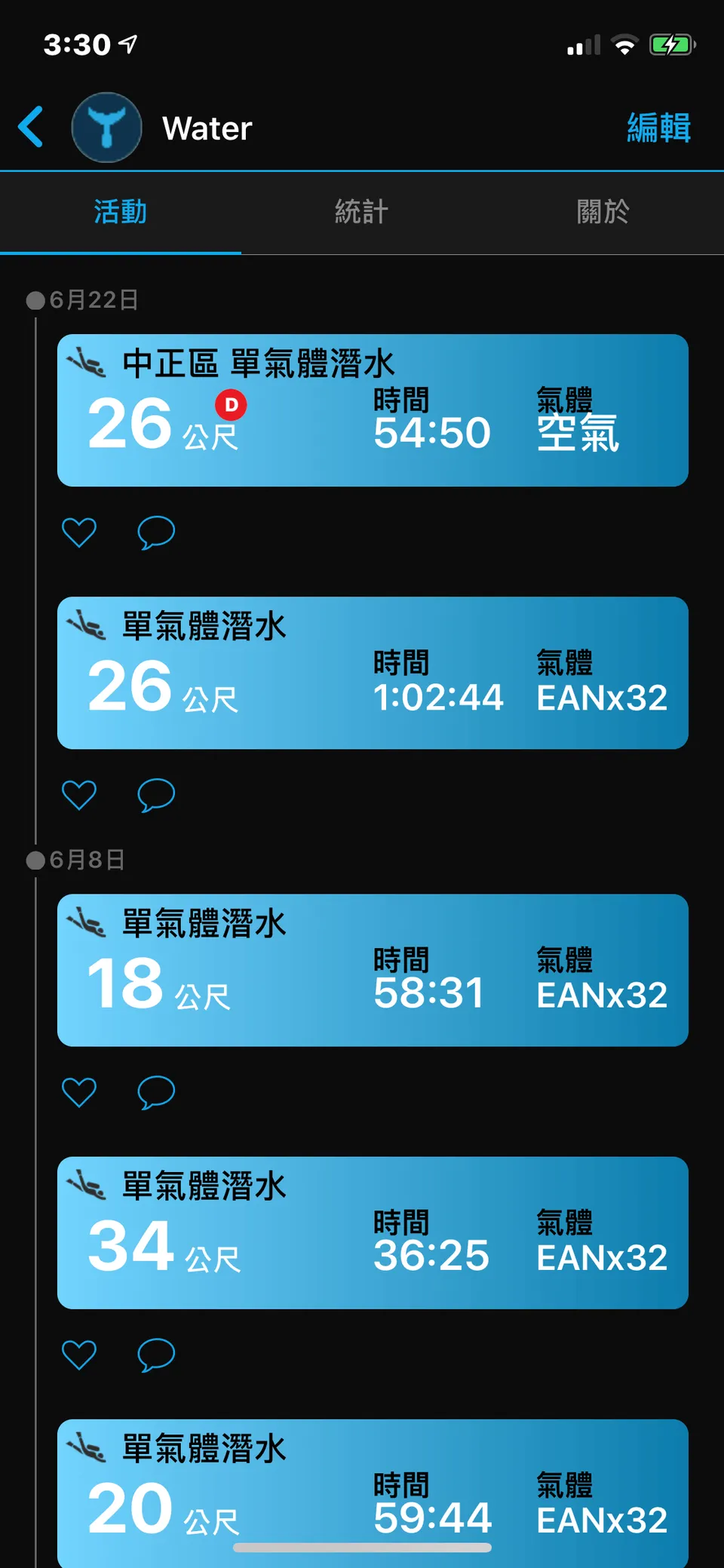
Dive log list
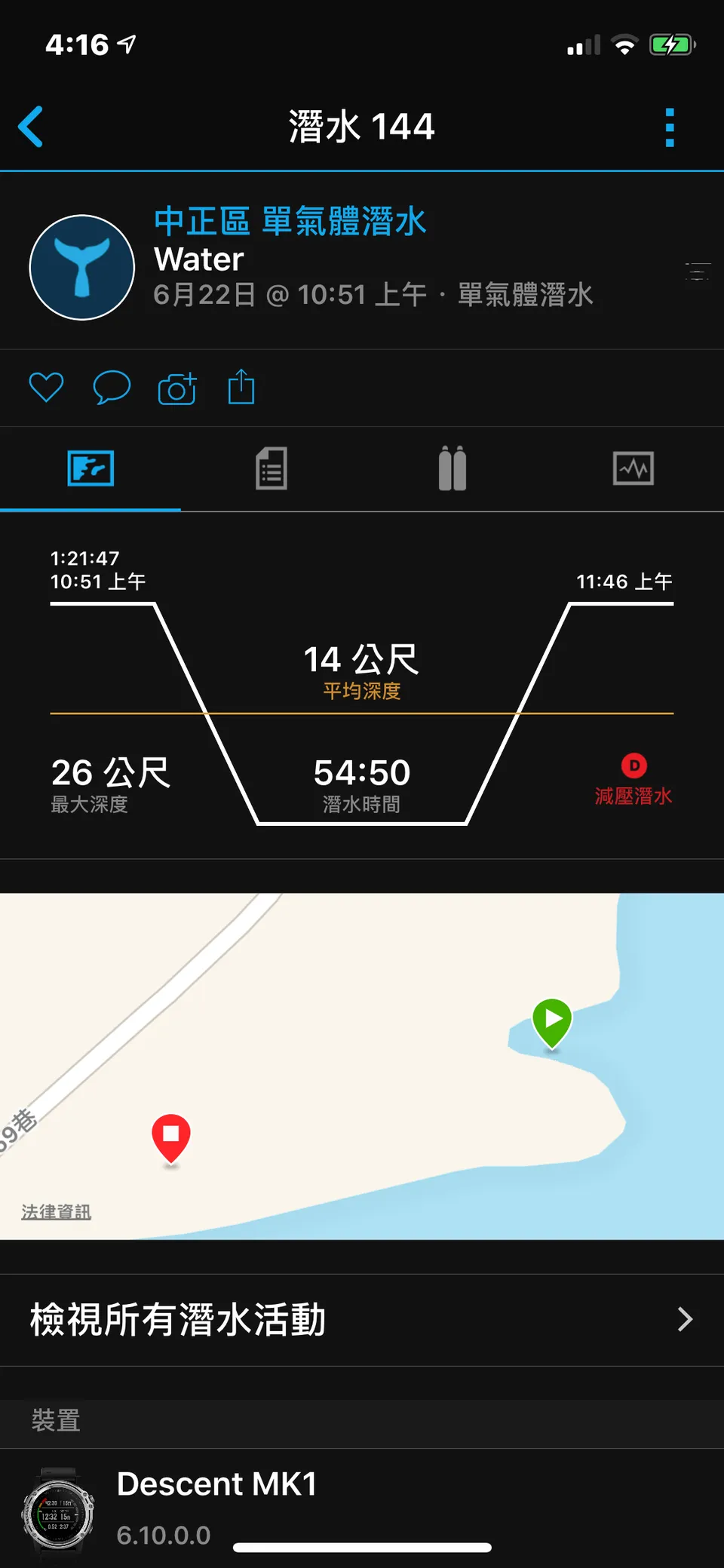
Dive log record
You can view each dive record in detail; if you accidentally entered a decompression obligation, that will be shown on screen as well.
- Underwater heart rate log
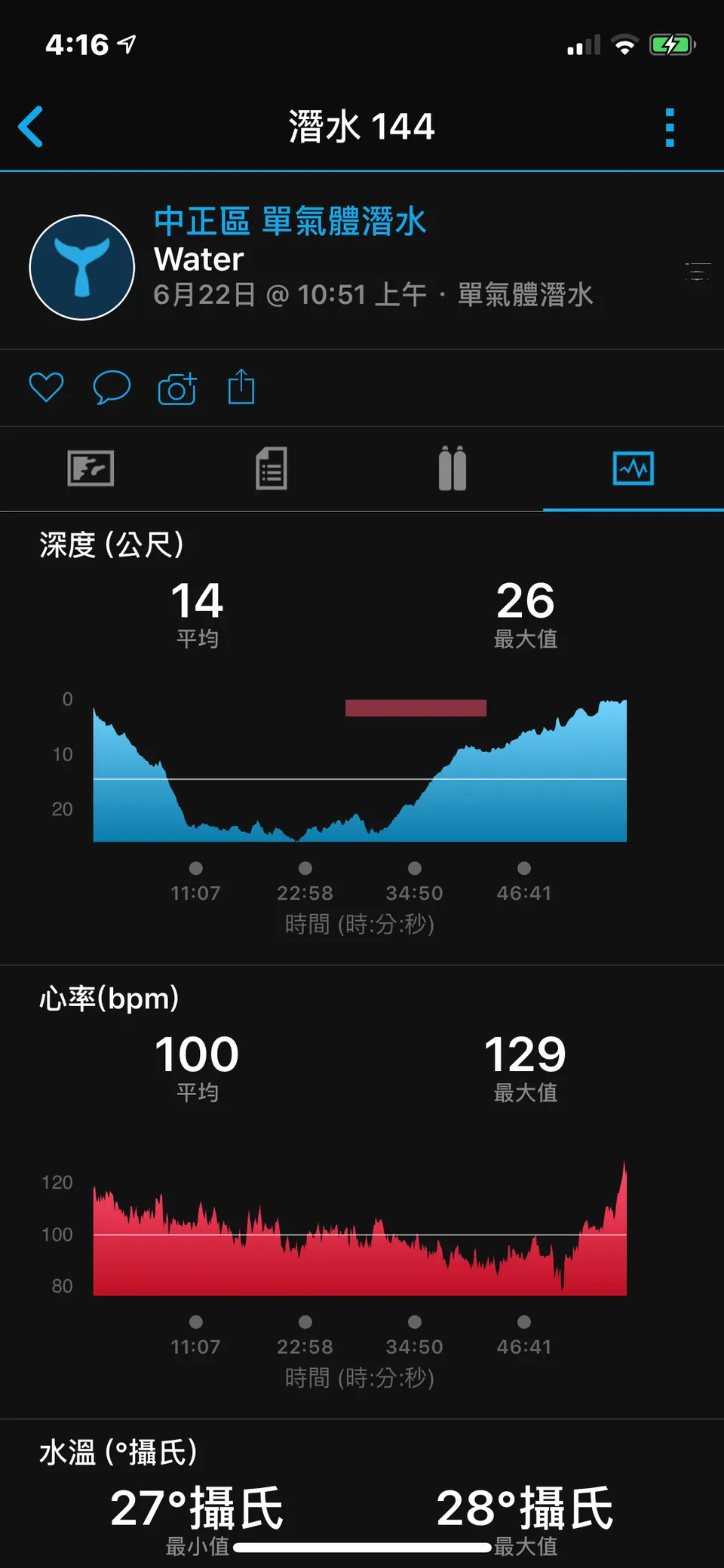
The first time I synced my dive log and saw my heart rate data from underwater, I found it genuinely fascinating. That said, if you want heart rate recorded on every dive, you'll need to wear the watch against your skin rather than on the outside of your wetsuit.
- Entry and exit point GPS coordinates
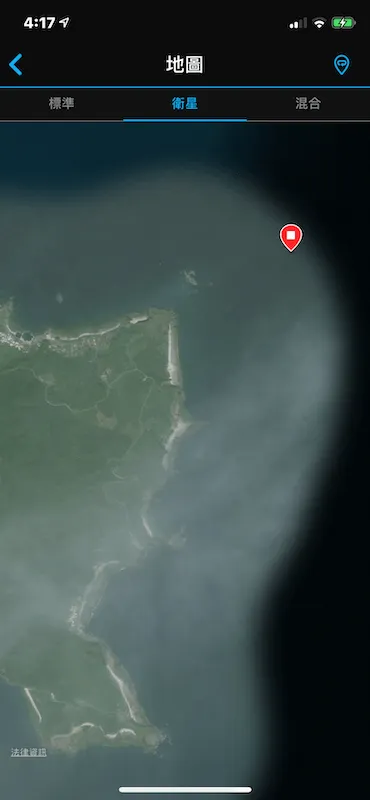
While Garmin's app doesn't have a built-in dive site directory, having GPS coordinates for your entry and exit points is invaluable — whether you're exploring a new dive site, reminiscing about past dives, or sharing locations with friends.
One thing to note: sometimes the entry point doesn't get recorded. It seems you need to switch the watch into dive mode during your pre-dive preparation to ensure the entry point is captured. Under normal circumstances, the exit point should always be recorded.
Summary
The Garmin MK1 sits at the top end of the dive computer price range, and its feature set is genuinely comprehensive enough to justify that price. While it can feel complex at first — both on the watch itself and in the app — and takes some time to explore and get comfortable with, once you've internalized the operating logic you'll truly appreciate just how capable it is.
For divers who also run, swim, hike, and pursue a variety of other sports in daily life, the MK1 is a genuinely strong choice. One watch that can handle the mountain trails and the ocean floor equally well, adapting to whatever activity you throw at it.
Related links: