Contents(6)
The Editor says: After reading the previous unboxing article on the World's Most Powerful and Feature-Packed Dive Computer — Garmin Descent Mk1, many of you have probably already been persuaded to pick one up. But the Garmin Descent Mk1 still has some hidden features that truly earn it the title of a smartwatch and help you get the absolute most out of its value. Garmin Product Page
Garmin Descent Mk1 Band Styles for Every Occasion:
The Garmin Descent Mk1 comes with a range of interchangeable bands to suit any look — from sporty multi-colour silicone straps to premium titanium bands. Even when you're not diving, you can match your watch to your outfit. If a dive computer can be worn every single day, it becomes an incredibly smart investment.
On top of that, the patented QuickFit® quick-release band system lets you swap bands in seconds without any tools — a genuine first in the world of dive watches!
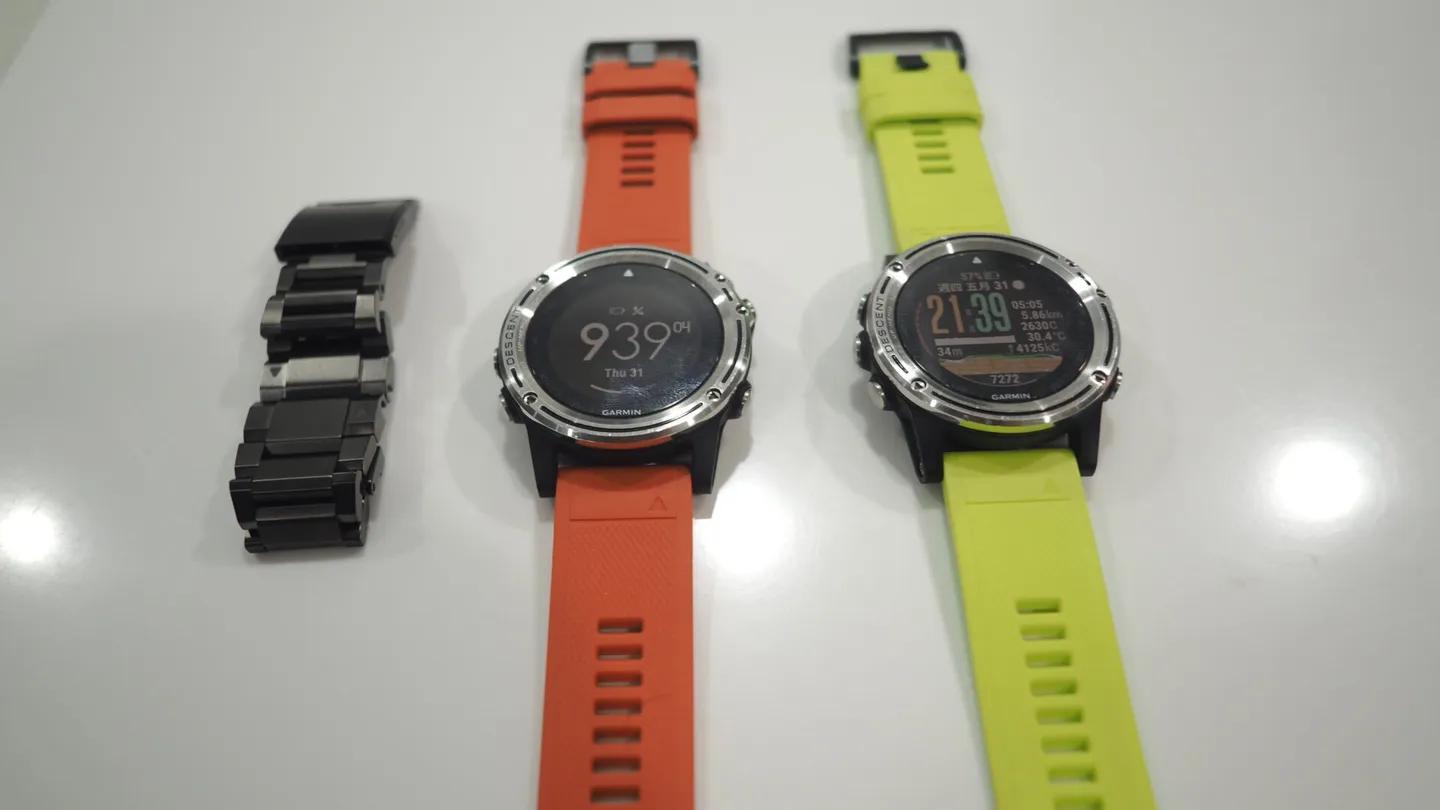
The Editor picked up the titanium band along with two silicone bands
The titanium band pairs perfectly with business attire — switch to an analog watch face and you're still ready for a night dive after work

The colourful silicone bands are a great match for casual everyday looks
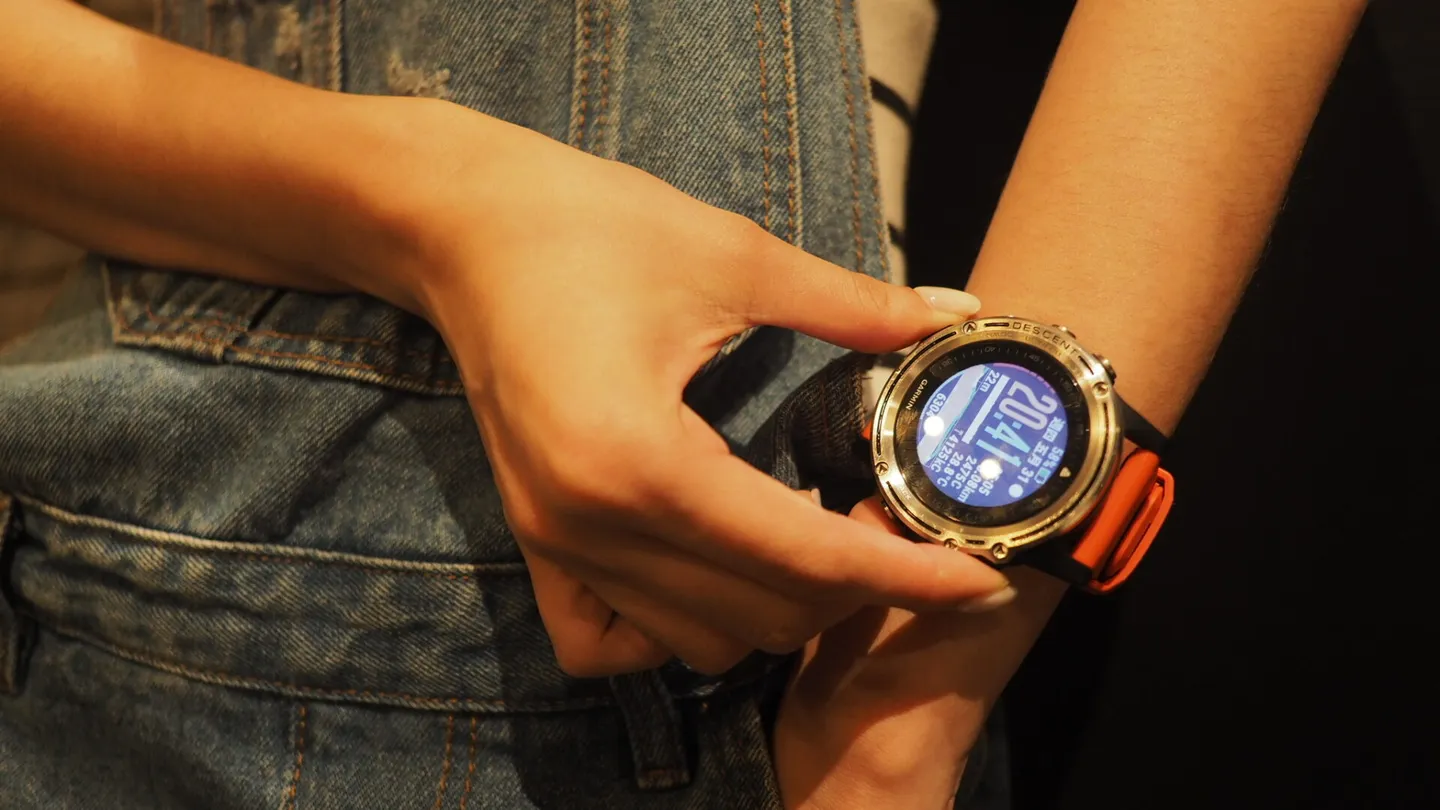
Switch to a digital watch face to display all kinds of activity data

Sports tracking is where Garmin truly shines — it would be a shame not to make use of all the other activity features
Basic Feature Setup:
If you haven't fully got to grips with the Descent Mk1's basic functions yet, and that hard-to-decipher manual isn't cutting it, check out the official tutorial videos below.
Descent Mk1: Gauge Dive Mode
Descent Mk1: Multi-Gas Dive Mode
https://www.youtube.com/watch?v=Bi2BKl_J3iU
Descent Mk1: Single Gas Dive Mode
https://www.youtube.com/watch?v=5bGDFY-LyXI
Custom Watch Faces:
As a smartwatch, being able to customise your watch face is a given. You can do this through the Connect app — set it up and enjoy a one-of-a-kind look that's entirely your own!
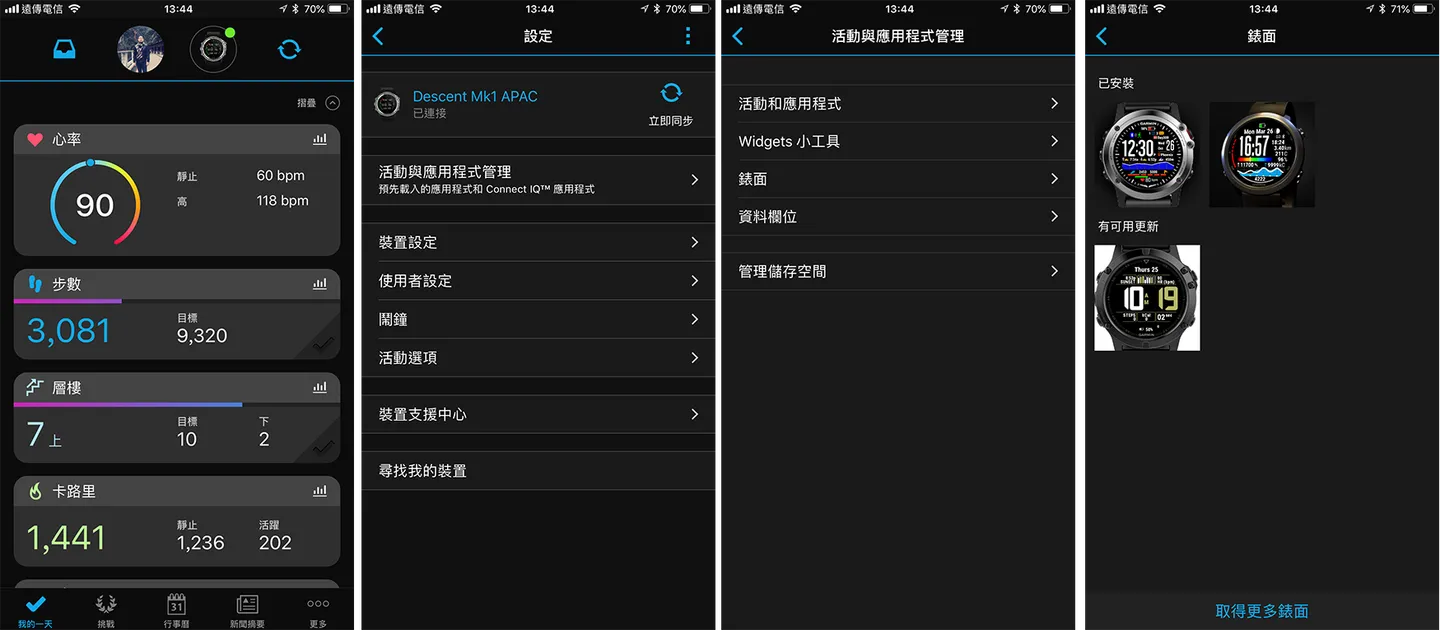
Step 1: Open the Connect app and confirm the watch is connected via Bluetooth > Tap the watch icon at the top.
Step 2: Go to Activity & App Management > Watch Faces > Select an installed watch face.
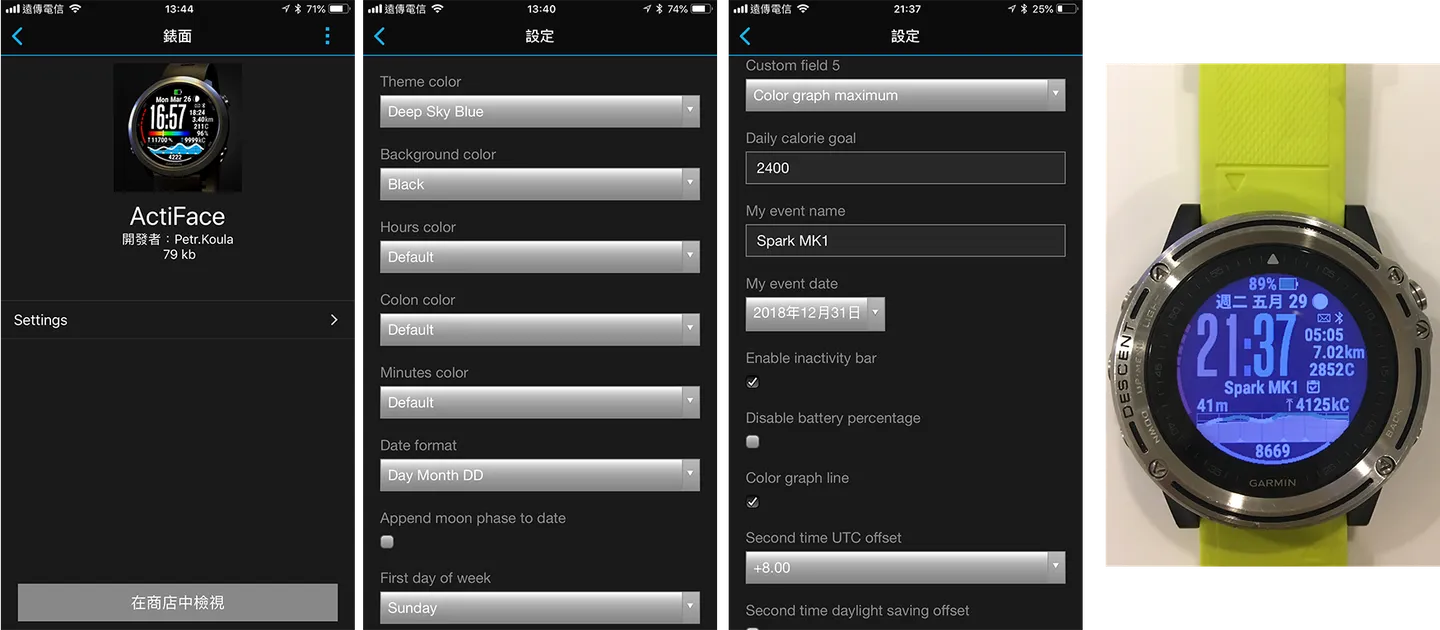
Step 3: Tap Settings to enter the configuration screen.
Step 4: Once inside Settings, you can adjust a variety of parameters, including colour, date display, and field display. When you're done, hit Save and wait for your phone and watch to sync automatically — your custom watch face will appear in no time. Some watch faces even support moon phase display, letting you know whether it's high tide or low tide today (the circle in the upper-right corner of the watch face in the image above indicates today is a full, high tide), which is handy for planning dive trips!
Download the Tides App:
With the Garmin Descent Mk1, not being able to check tidal information right on your wrist feels like the last mile is missing. When you're resting by the sea, you naturally want to check the current and tide conditions before your next dive — especially at a dive site like the Northeast Coast, where the difference between slack tide and peak tidal flow is dramatic. Being able to check sea conditions in real time through your watch is genuinely convenient.
First, we'll use the Connect app on your phone to unlock this feature.
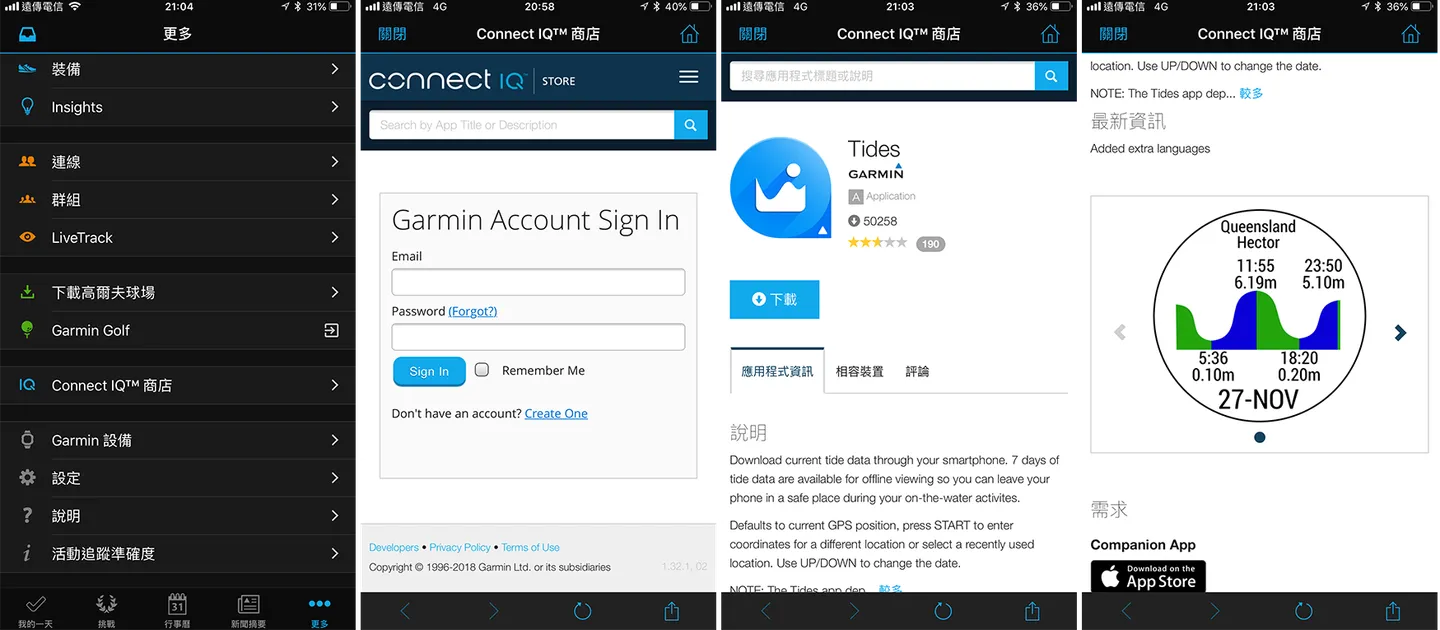
Step 1: Tap More > Connect IQ Store.
Step 2: Log in to your Connect account.
Step 3: Search for "Tides."
Step 4: After syncing, remember to install and add it to your app widgets — you'll then be able to check tidal information anytime!
Download the Weather Widget — Wind & Waves On The Go:
The Descent Mk1 also supports an official Wind & Waves widget. Using GPS to determine your location, it can pull up local wind direction, wind strength, wave height, and a half-day forecast — incredibly useful for planning dives and outdoor adventures.
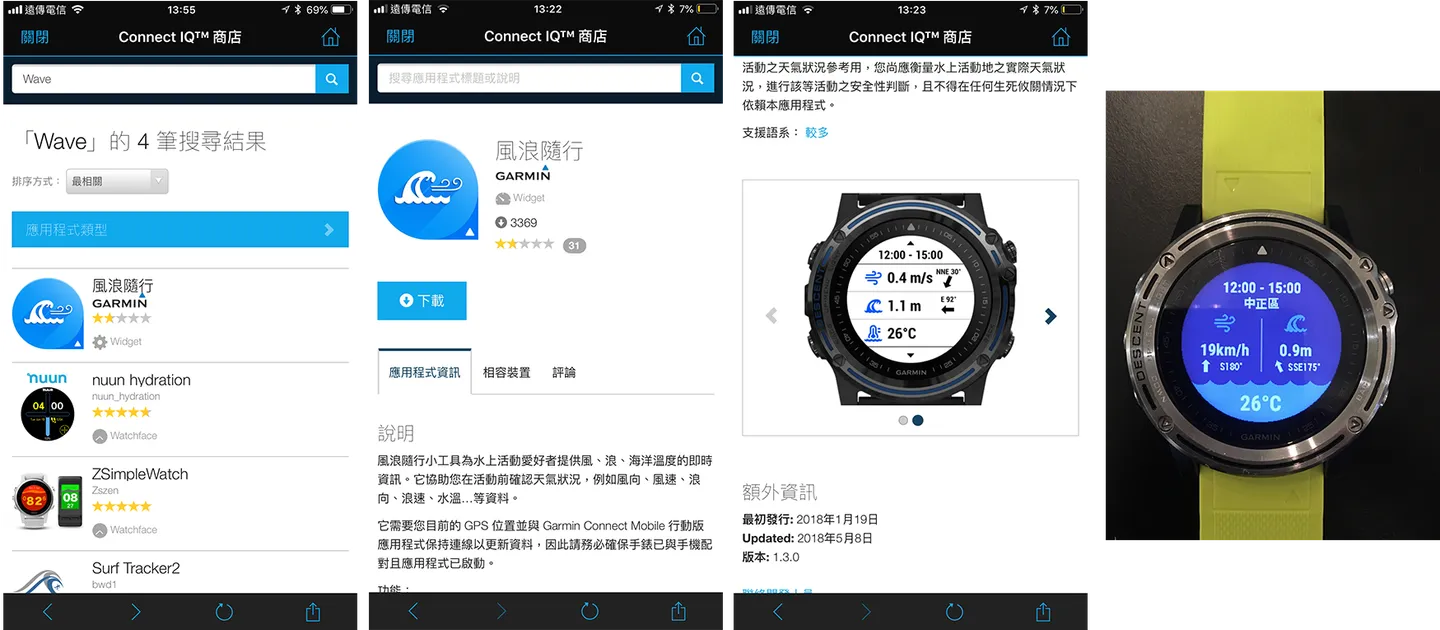
Step 1: Tap More > Connect IQ Store.
Step 2: Log in to your Connect account.
Step 3: Search for "Wave."
Step 4: After syncing, remember to install and add it to your widgets — you'll then be able to check wind and wave conditions anytime!


Join a Group or Connect with Friends:
This is another standout feature. Not only can you create a group with your dive buddies to keep track of each other's dive logs, you can also launch challenges for everyone to join. This is a great tool for dive clubs and regular buddy groups — it builds camaraderie and makes diving social!
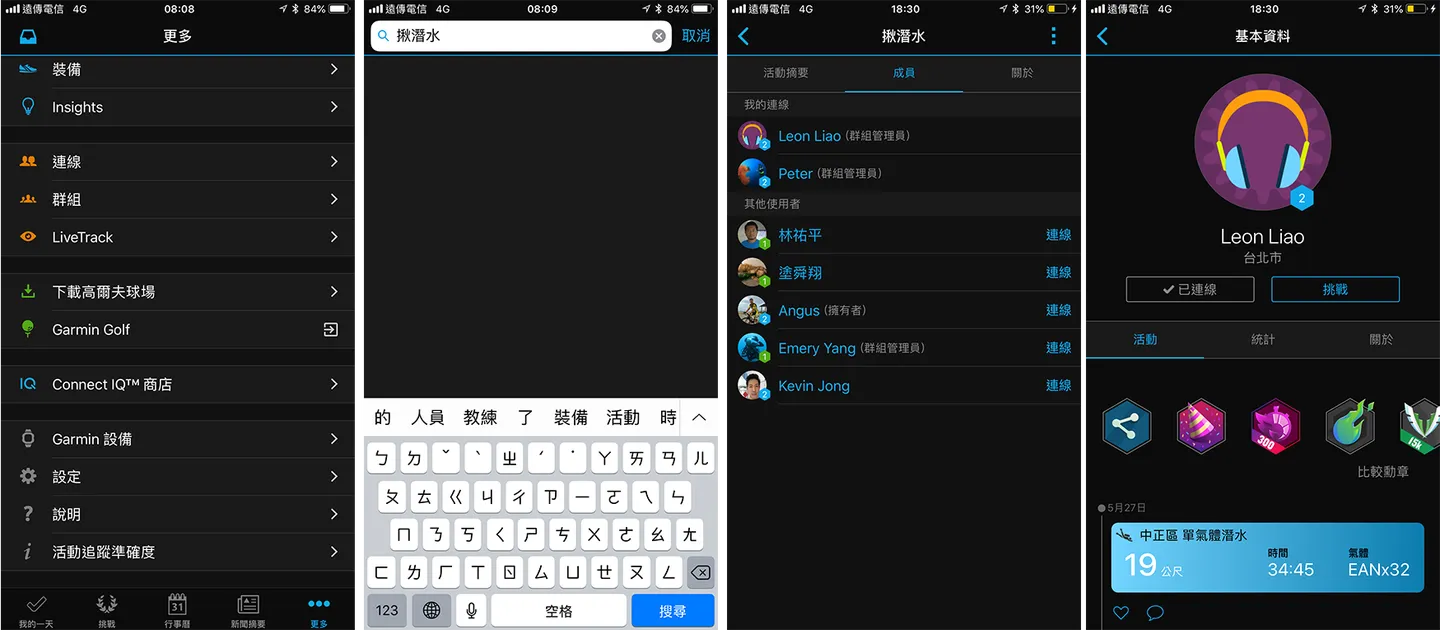
Step 1: Tap More > Groups.
Step 2: Search for a group and join — you'll then be able to see group members and their publicly shared activities.
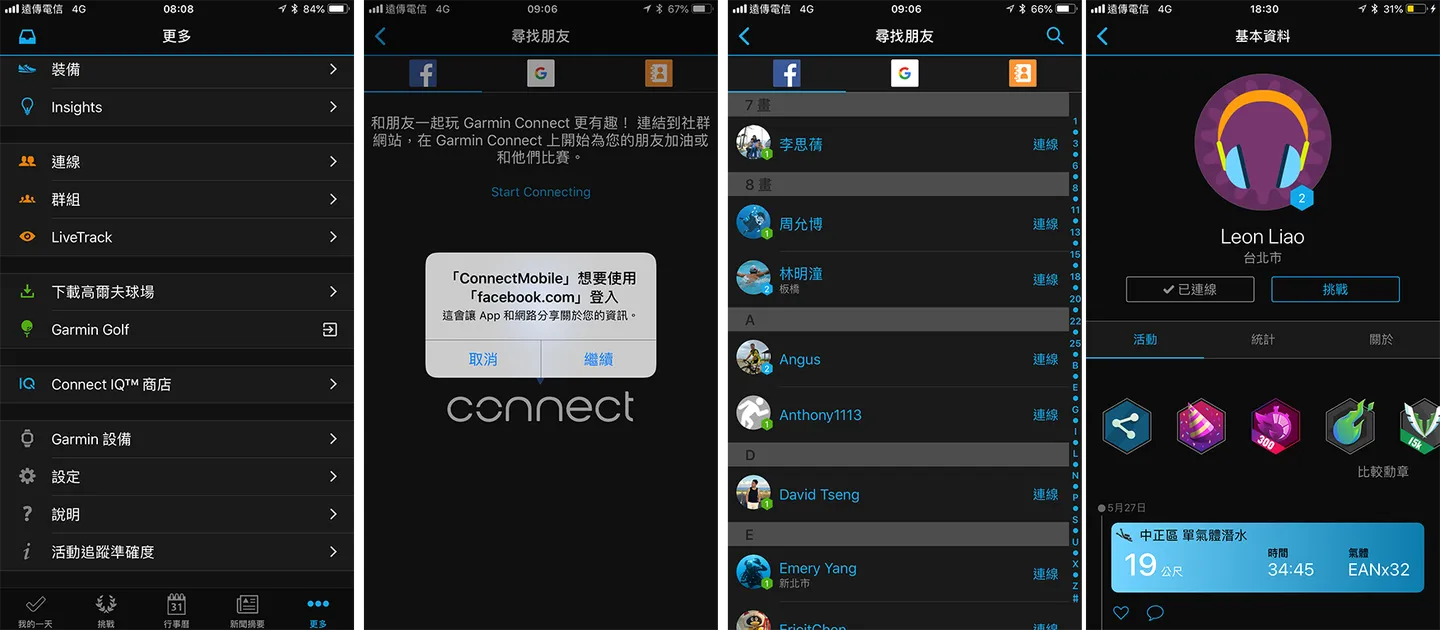
Step 1: Tap More > Connections.
Step 2: Choose to connect via Facebook or Google. Once connected, you'll be able to see friends in your contacts who use Garmin products.
Step 3: Send an invitation and wait for your friends to accept — you'll then be able to view their publicly shared activities.
One word of caution though: use this feature wisely, because before long your friends will be complaining that you snuck off for a dive without inviting them (laughs).
After exploring all these advanced settings for the Garmin Descent Mk1, we're sure you're itching to try them out. Word has it that Garmin is also working on some secret new surprises — so let's stay tuned for the next big announcement!
Extended Reading: