

In our previous article, we covered how to correct image colors in post when you have the official red filter installed (Underwater Video Color Restoration 1.0 – LUT Extension Pack). But a red filter can only compensate for the missing reds in the first place — so what do you do if you happened to dive without one? Here's how to fix it in post.
How to Fix Footage Shot Without a Filter?
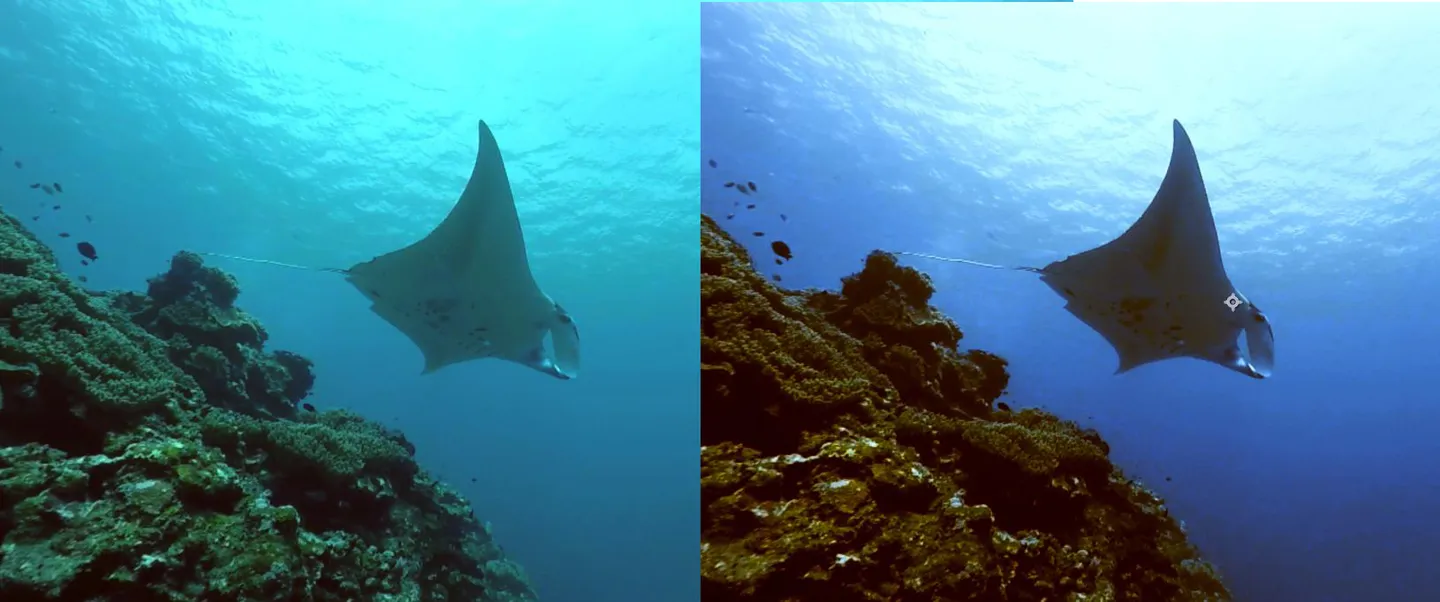
This example was shot without the GoPro official red filter. The focus is on correcting underwater colors, and the key concept is simple: whatever color is missing underwater, you add it back. The software used is After Effects.
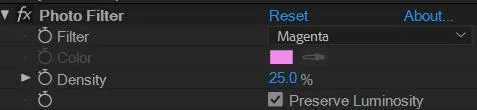
- Create an Adjustment Layer, then apply Photo Filter. Change the Filter to Magenta — the idea is to simulate the effect of a red filter directly in post-production.
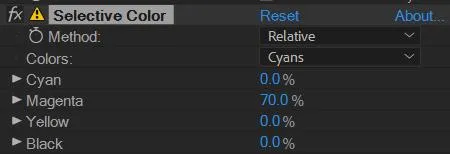
- Apply Selective Color. Set the Color to Cyans, then boost Magenta to restore the missing reds.
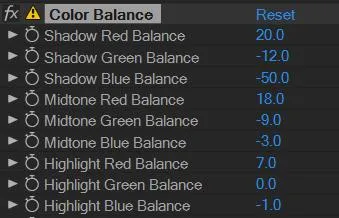
- Apply Color Balance. Focus primarily on the shadows — raise the Red Balance and lower the Green and Blue Balance. For the midtones and highlights, adjust based on what you see on screen.
- Apply Lumetri Color and try adjusting the Look to define the overall color grade — it's a bit like choosing which film stock to view your footage through.

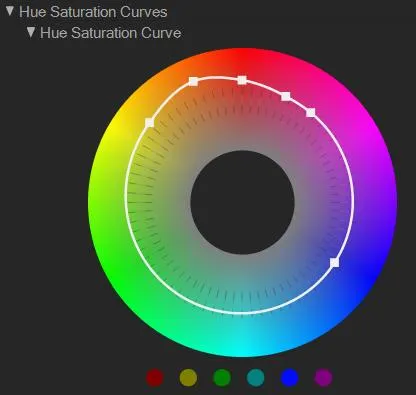
- You can also use the Hue/Saturation Curve to bring in more red.
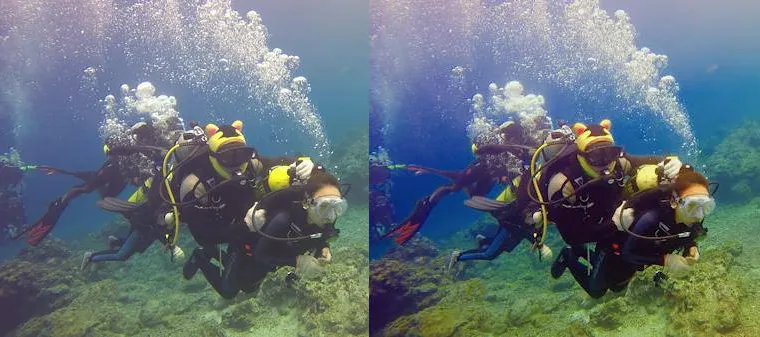
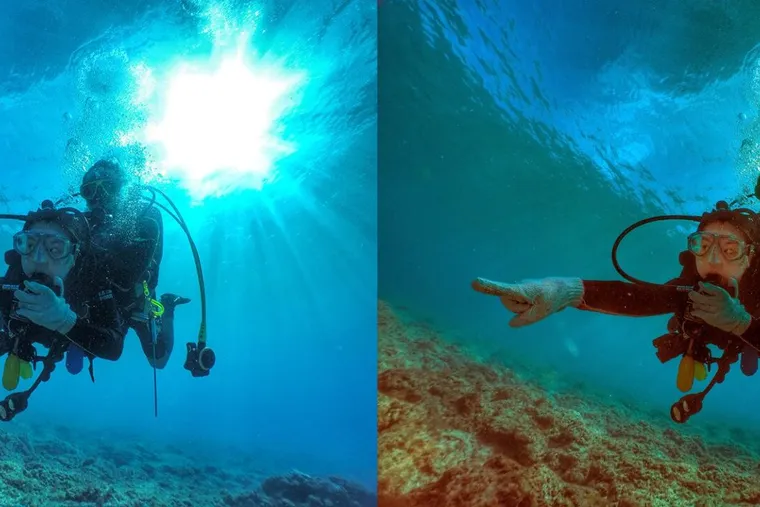
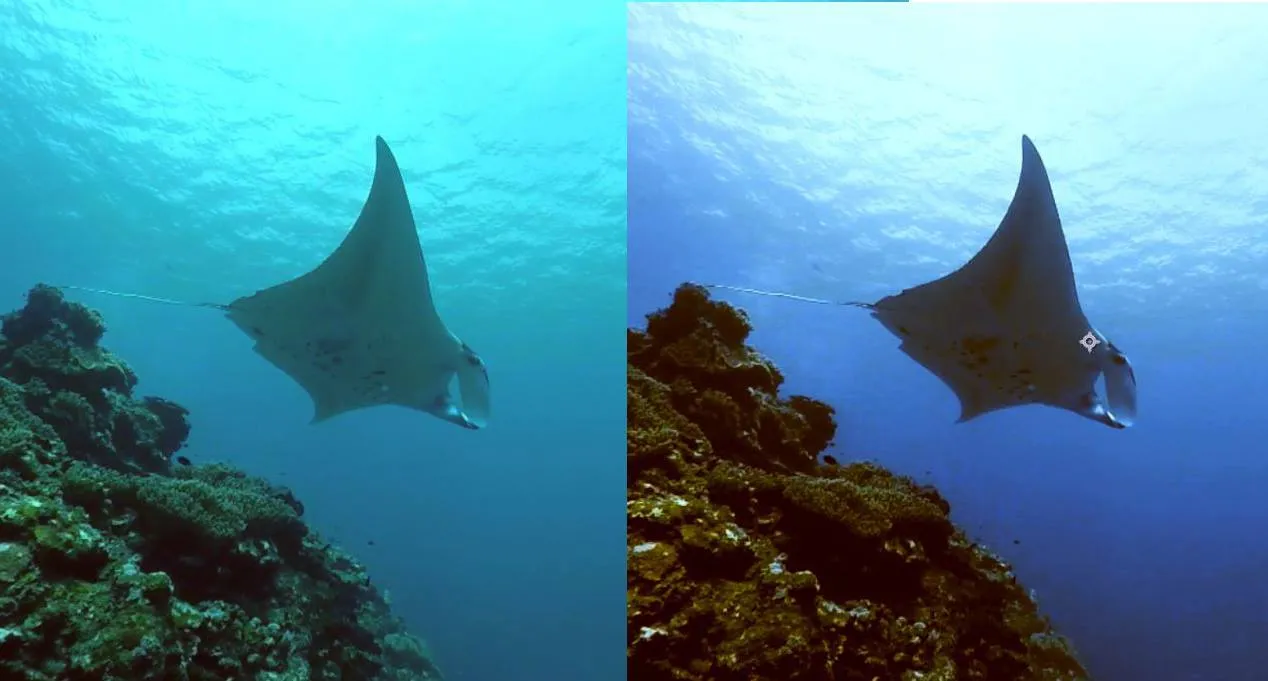
- See the before-and-after color correction comparison.
The GoPro's compact form factor makes it a perfect companion for divers looking to document their dives — and it works just as well for all kinds of extreme sports. If you're interested in GoPro or already a GoPro enthusiast, feel free to browse "One Rod, All the World — GoPro Action Photography" at your local bookstore and discover even more creative ways to use your GoPro! I also regularly post GoPro photos and videos on the "One Rod, All the World" Facebook fan page — head over there to check out more of my GoPro work.