

The Editor says: After sharing our guides on GoPro underwater photo color grading and GoPro travel shoot quick color correction, many of you have been asking how to restore true colors in underwater footage. Since GoPro is all about being lightweight and portable, most divers won't bother adding an expensive, bulky video light — but does that mean your footage is doomed to look blue forever? No
NoNo~ This article will turn you into a master in no time!
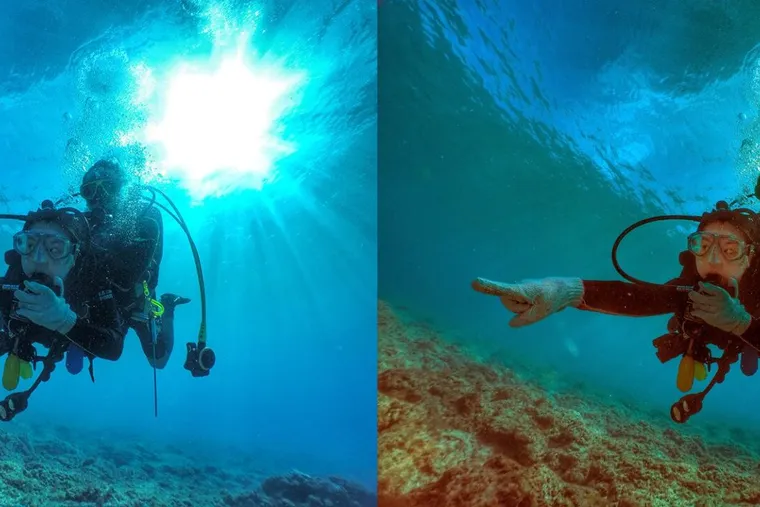
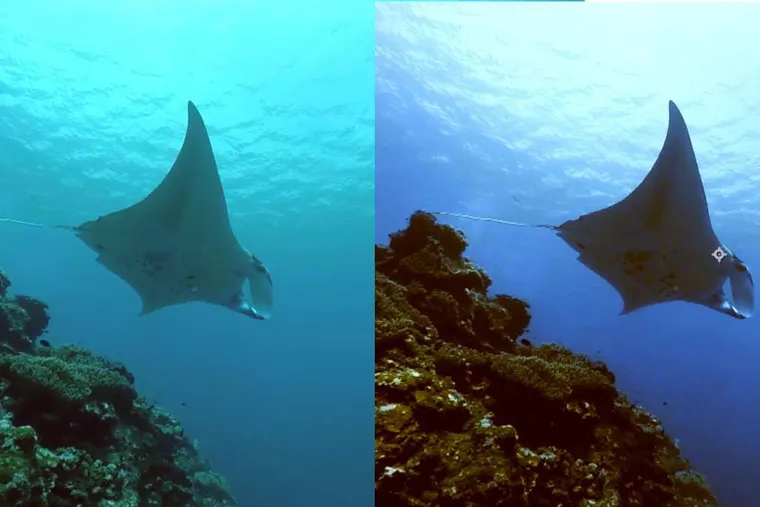
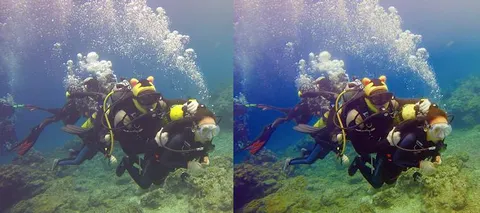
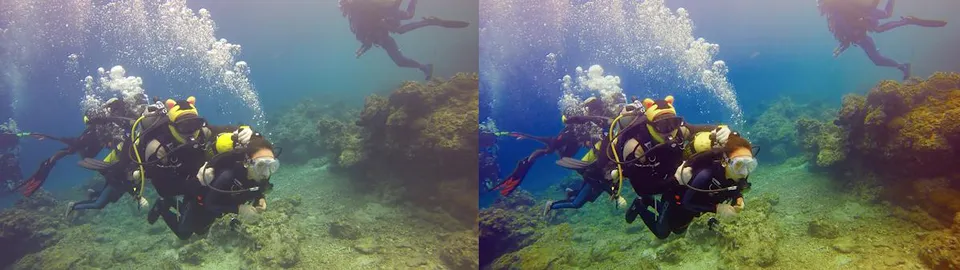
This example was shot with GoPro's official red filter already attached (make sure you get the genuine GoPro red filter — third-party versions are a real letdown). That said, light still diminishes with depth underwater, so to boost the color saturation of the footage, we'll use a LUT for color grading. Let's first take a look at the amazing before-and-after results!
How to Restore True Colors in Underwater Video?
First, you'll need a professional video editing application such as PREMIERE PRO, AFTER EFFECTS, or FINAL CUT PRO X. In the following tutorial, we'll be using PREMIERE PRO.
- Open PR or another post-production editing application — all of them include a 3D LUT setting. You can find the GC_Protune_to_709 color grading definition online. (Download link)
- Go to Window > Lumetri Scopes. Here we'll use the RGB distribution to guide our color grading.
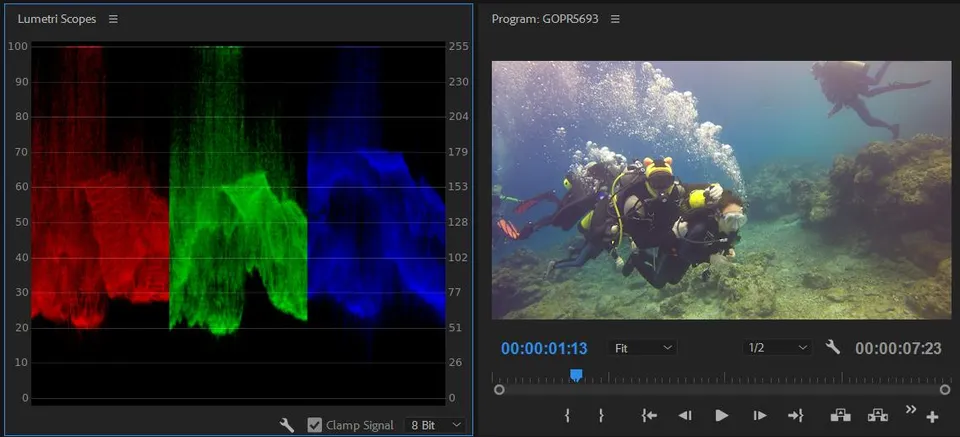
Note: In general, the ideal color range is between 0 and 100 (0–255). Values should neither exceed the upper limit nor fall too low. Looking at the current color distribution, the shadows appear slightly underrepresented while the highlights seem a touch overexposed.
- Open Lumetri Color and load the GC_Protune_to_709 LUT definition you downloaded.
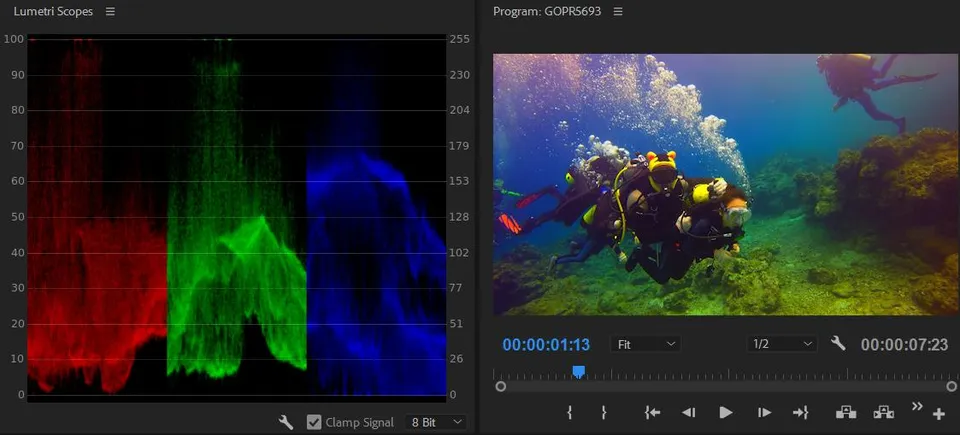
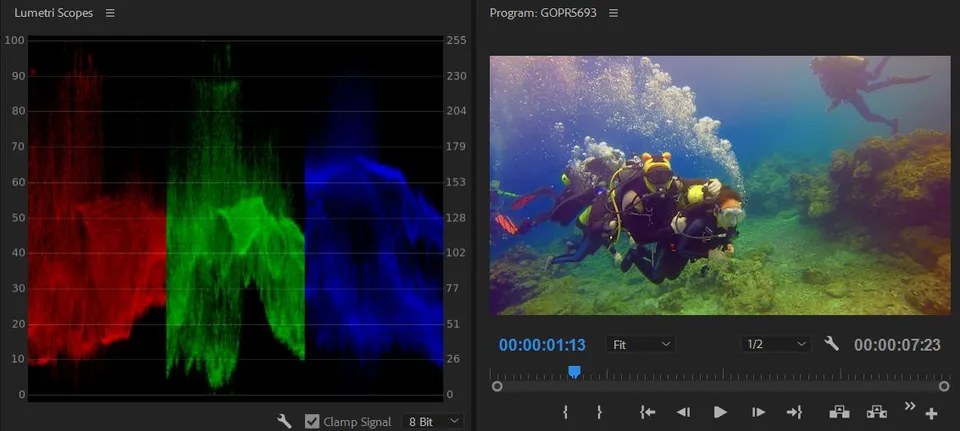
Note: The shadow region has now been filled in, but there is some clipping in the darker tones — especially in the blue channel — indicating overall oversaturation.
- Lower the Saturation value to reduce oversaturation. You'll notice the blue channel comes back into balance.
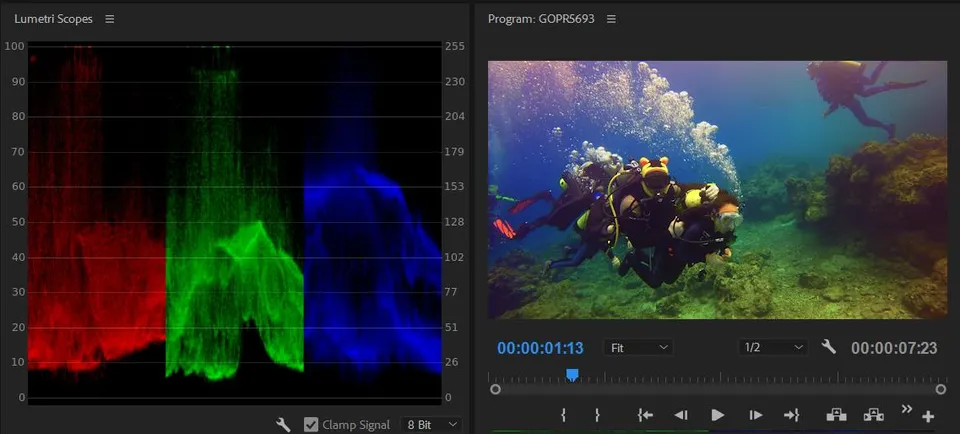
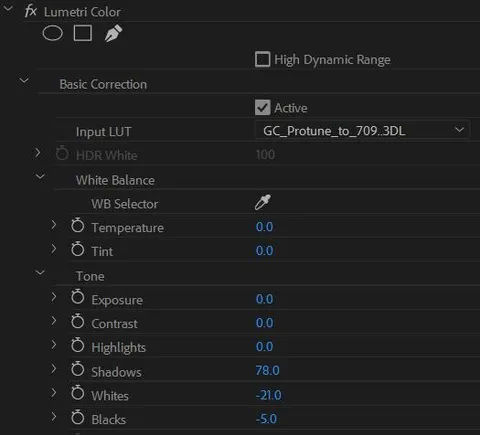
- You can now see that the red and green channels are clipping above 100. Bring down the Whites value to correct the red and green overexposure.
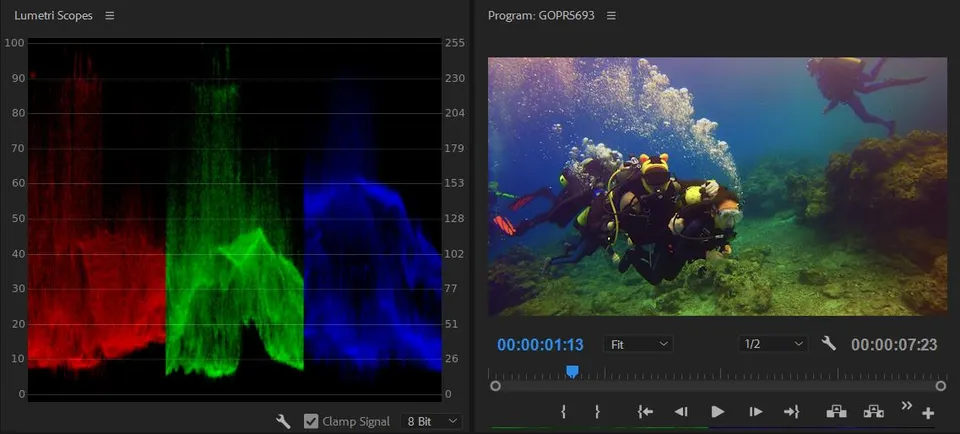
- To add a bit more depth to the shadow tones, raise the Shadows value and slightly lower the Blacks.
- Final Lumetri Color parameters.
- If you'd like to experiment with creative color looks, head over to the Creative tab and browse the Look presets.

- A side-by-side comparison of the color adjustments.
GoPro's compact form factor makes it perfect for divers who want to record their underwater adventures, and it's equally well-suited for a wide range of extreme sports. If you're interested in GoPro or are already a GoPro enthusiast, feel free to pick up a copy of One Rod, One World — GoPro Action Photography at your local bookstore to discover even more creative ways to use your GoPro! I also regularly post photos and videos taken with my GoPro on the One Rod, One World Facebook fan page — come check out my other GoPro work there.
Related link: One Rod, One World — GoPro Action Photography