Contents(8)
The Editor says: More and more divers are picking up cameras underwater these days, yet every time we browse the work of master underwater photographers, our jaws hit the floor — nothing but pure admiration. Fortunately, a growing number of divers are happy to share their experience — not just camera settings, but also the legendary post-processing tips and tricks that used to be closely guarded secrets. So don't hold back; share this article far and wide so everyone can instantly master the art of using Photoshop masks!
Underwater Photography Contributor: Candy Lin (Facebook)
By asking questions online and humbly seeking guidance from masters, Candy Lin has gradually built a reputation in the diving community over the past few years — all with a little Olympus TG4. Beyond the widely used Lightroom, the software most people already have on their computers is Photoshop. With its powerful post-processing capabilities, and with help from tutorials by experienced photographers, Candy has worked out her own personal approach to mask-based editing. She's sharing it generously in the hope that everyone will keep passing beautiful photos along!
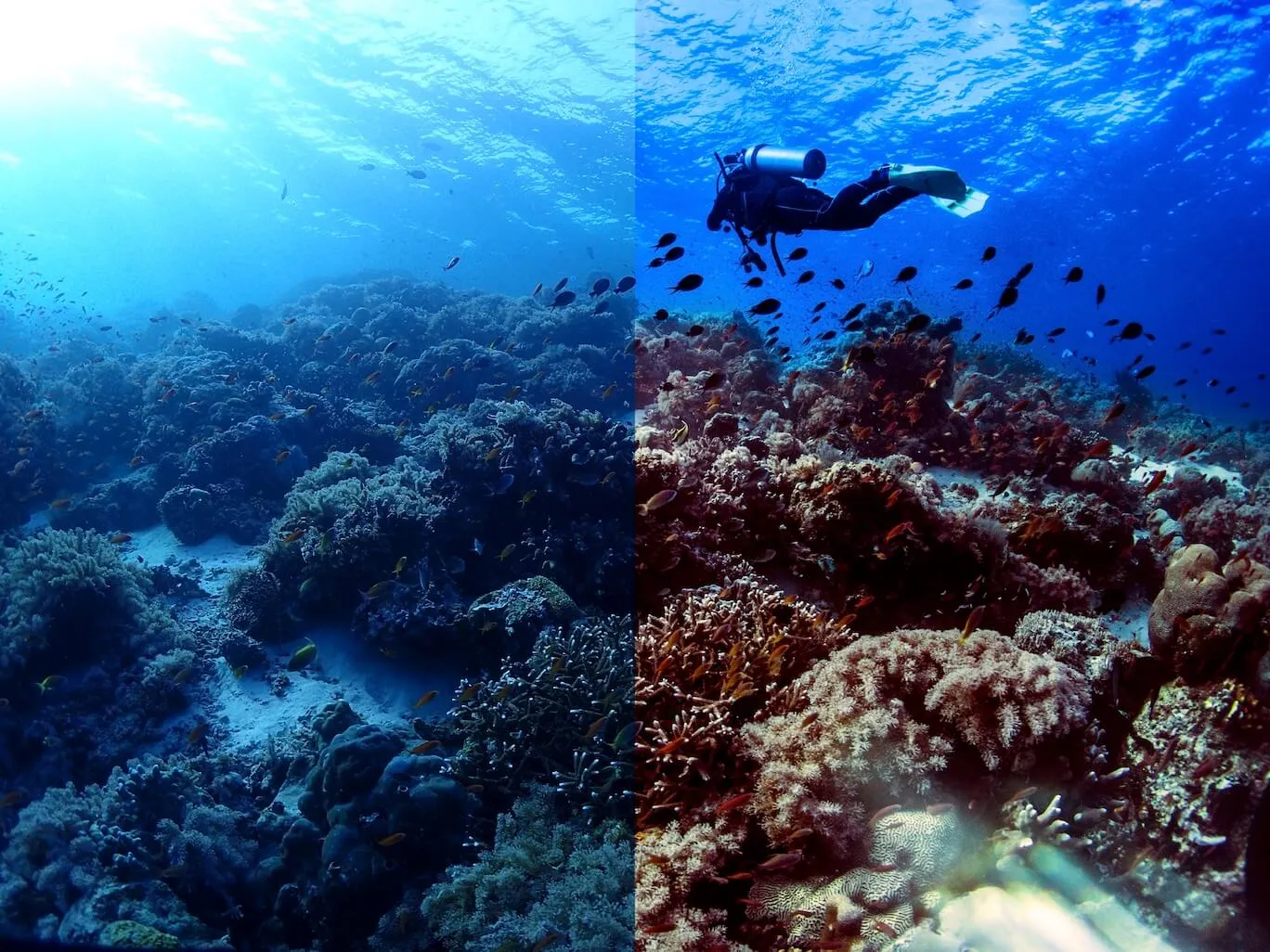
Before diving into the tutorial, let's take a look at the before-and-after difference that masks can make!
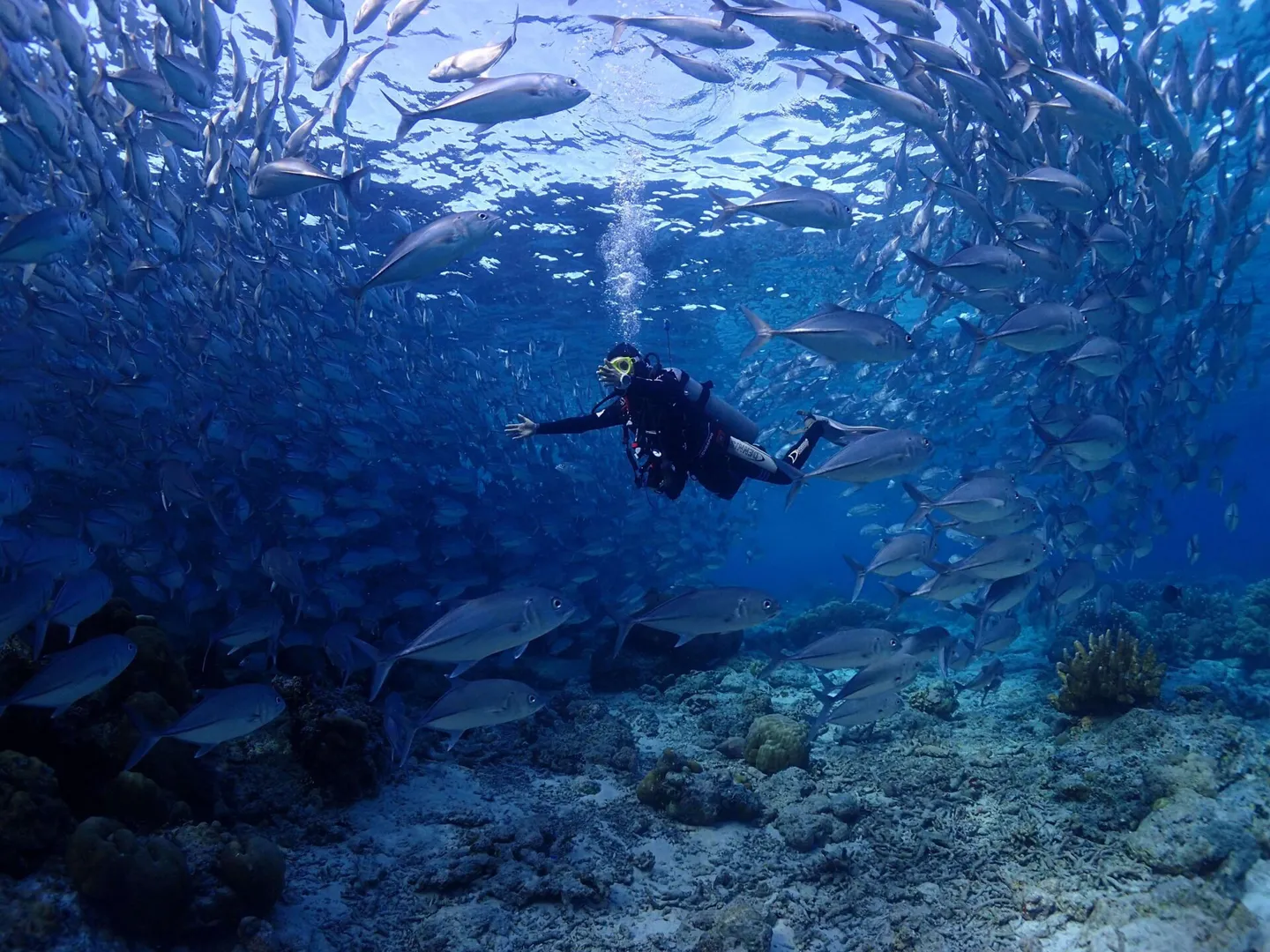
Before using a mask
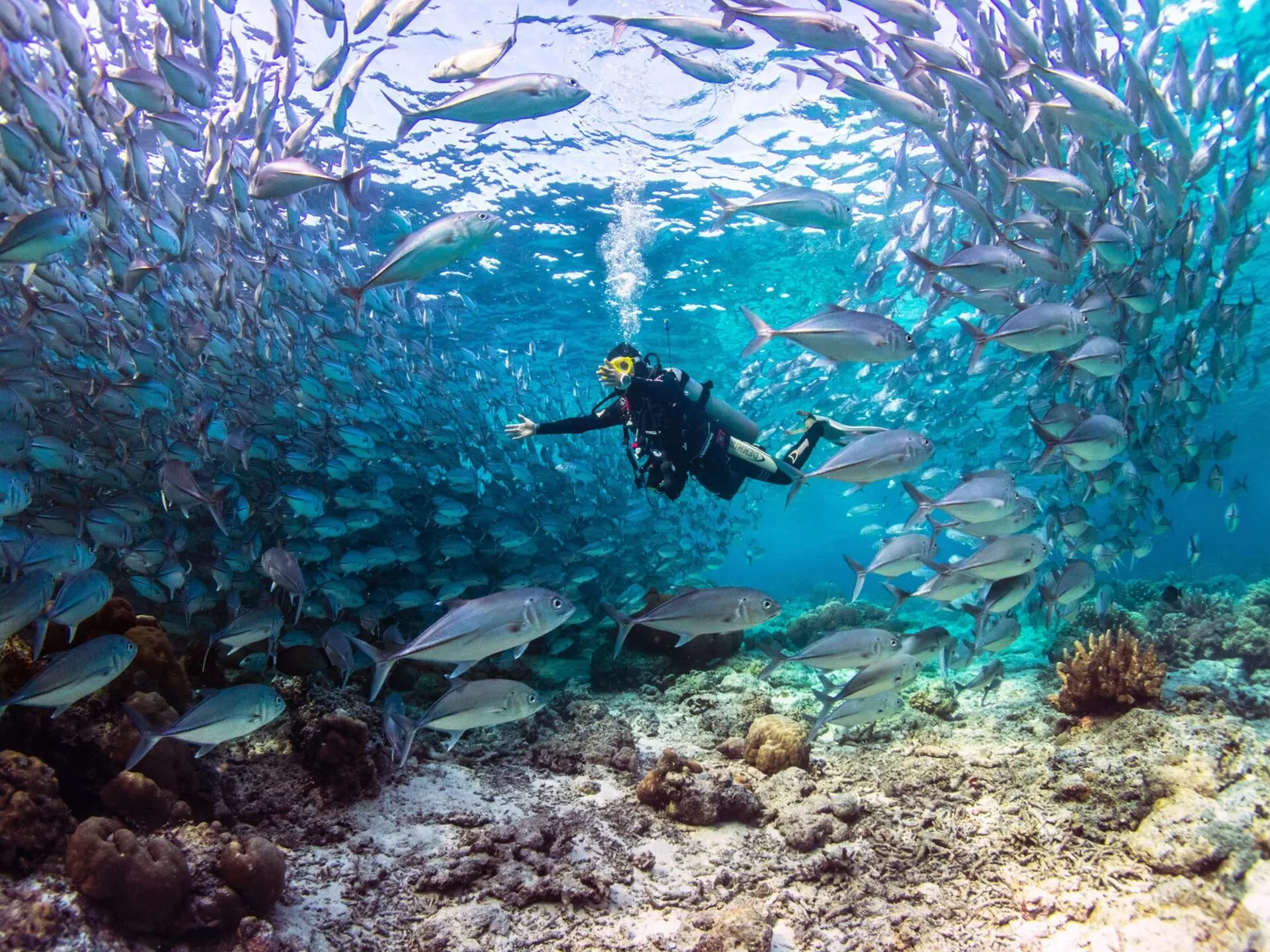
After using a mask


Steps for Adjusting Photos in Photoshop (Using Masks)
1. Initial Adjustments and Import
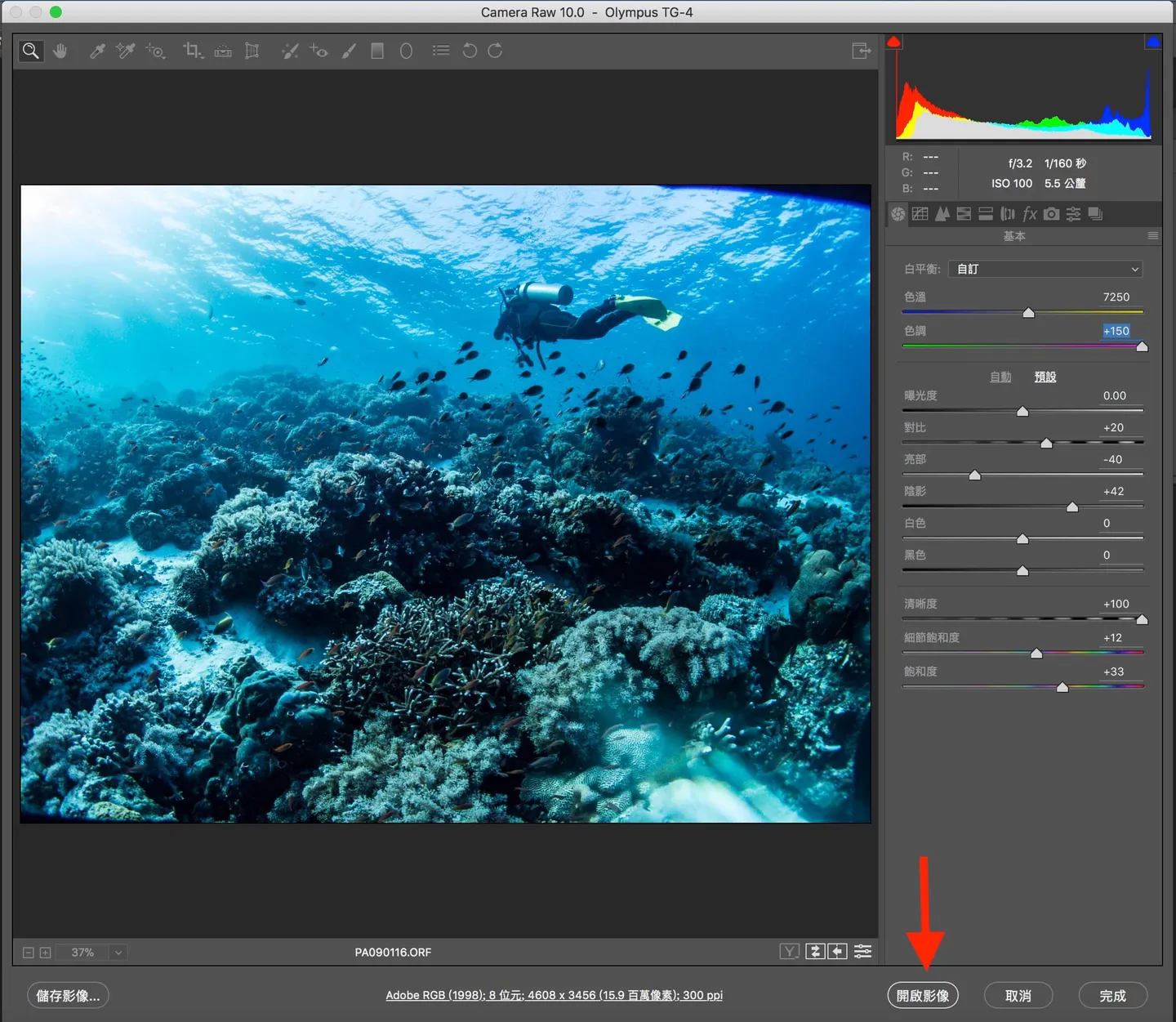
The reason I choose Photoshop (PS for short) is that the depth and tonal values vary from photo to photo.
I like to edit each image individually, because every shot is different and I enjoy dialling in the colours I personally like.
The camera used is an Olympus TG4 with a Weefine wide-angle lens attachment; no strobe or video light was used for this particular shot.
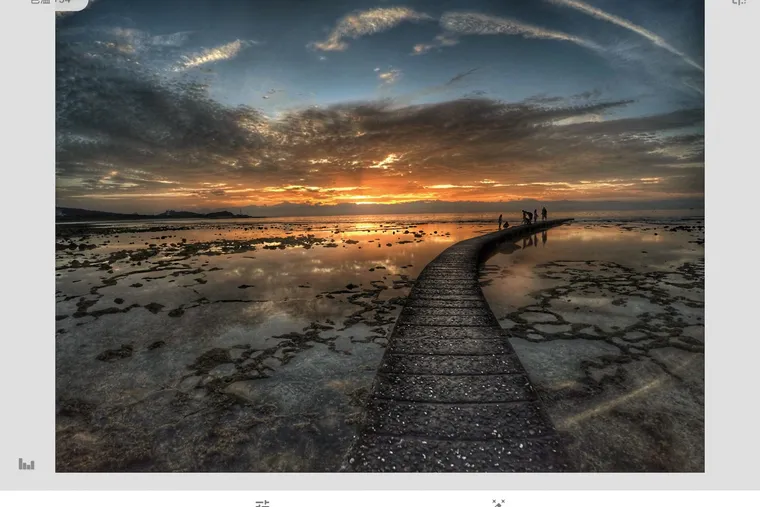
First, open your image (I work with RAW files).
The Camera Raw plug-in dialog will pop up first (if your version of PS can't open RAW files, you'll need to install this plug-in).
You can make some quick, rough adjustments here. As for exactly how to adjust — honestly, I'm no expert either,
so just drag the sliders until it looks right to your eye. As for what "looks right" means,
spend time regularly enjoying beautiful photos — both on land and underwater —
and train your sense of aesthetics. That said, there's no absolute standard for what makes a photo beautiful or not.
Feel free to experiment with your own style; it's perfectly fine to imitate someone else's look at the start.
Once you're done adjusting, click "Open Image" and you'll enter the main PS workspace.
2. Crop to the Right Composition
After entering PS, using this photo as an example — because a wide-angle lens cover was visible in the frame, there's a black border in the upper-right corner.
You can use the Crop tool to trim the photo, or use the Healing Brush to retouch away the shadow.
Since the focus of this article is the mask technique, I won't go into detail on that here.
3. Select the Quick Mask
There are many ways to use masks;
here I'm sharing the approach I use (which is honestly the only approach I know),
To start, I click on Quick Mask Mode, located at the bottom of the toolbar.
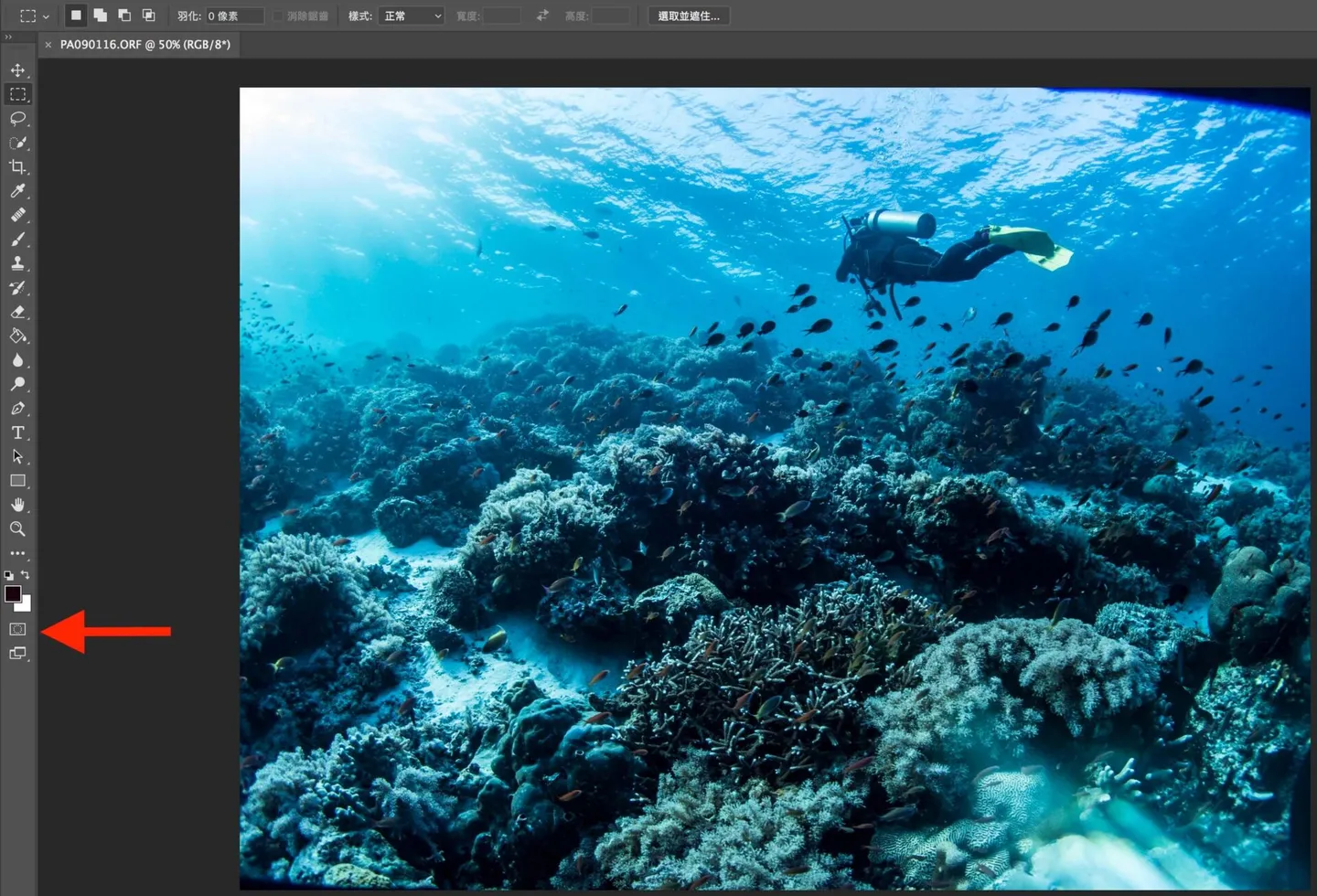
4. Adjust the Brush Settings
After selecting Quick Mask, choose the Brush tool and set the size to your preference. The key setting is Hardness — I always set it to 0%.
Because underwater photos typically don't have sharp edges the way landscape shots do (where a clear line separates a mountain from the sky),
using a soft brush to paint the area you want to adjust ensures that the boundaries won't look too distinct and make the photo look composited.
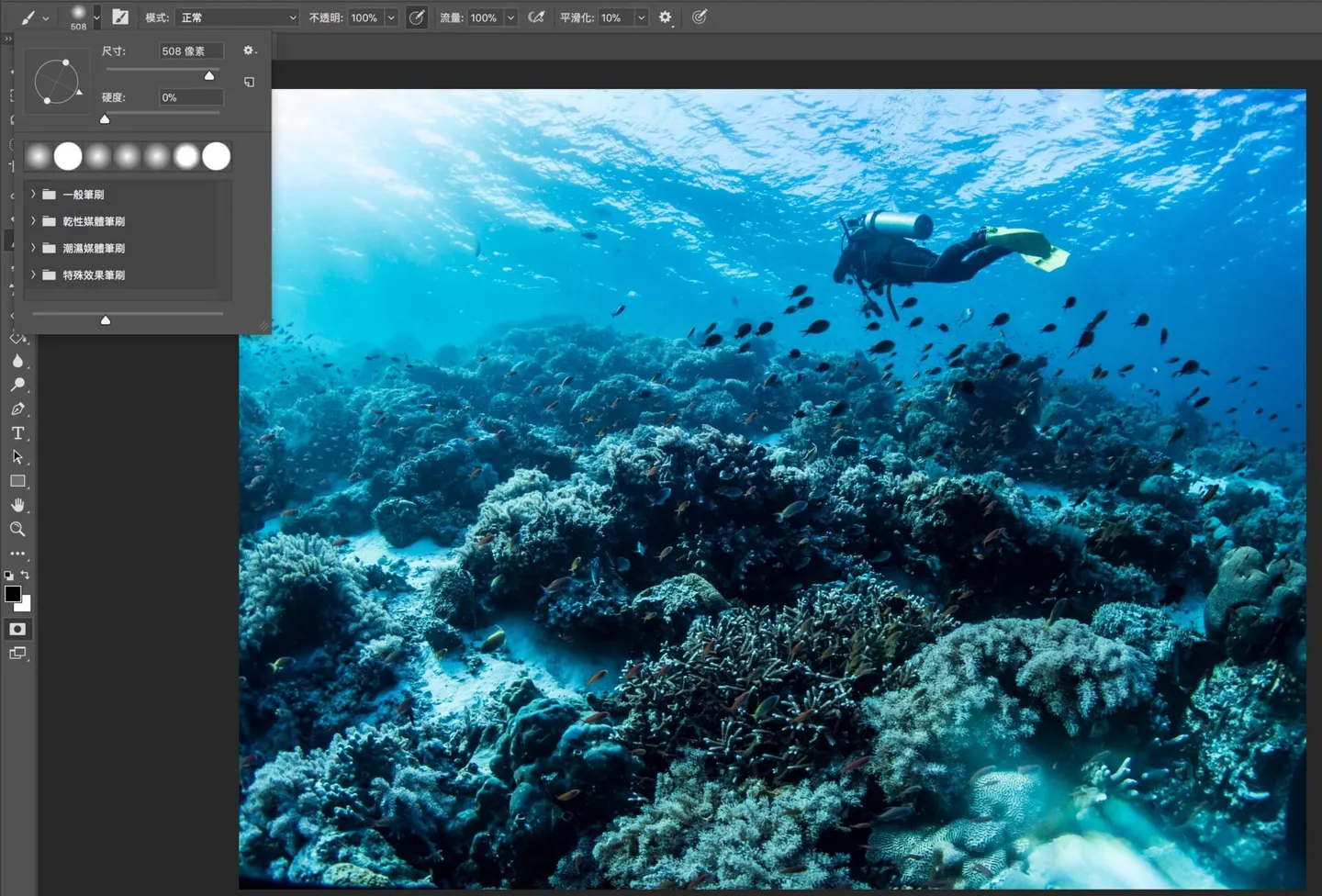
Paint the area you want to adjust with the brush — it will appear in red (the system's default colour).
If you paint outside the intended area, swap the black and white colour swatches in the lower-left corner. When the top swatch turns white, the brush acts as an eraser to remove the excess.
The red area actually covers the parts you do not want to change.
However, since it's easier to precisely brush the coral than to paint over the open water, I still brush directly over the coral.
Then click Quick Mask Mode again to exit — you'll see a dashed selection outline (marching ants) around your selection.
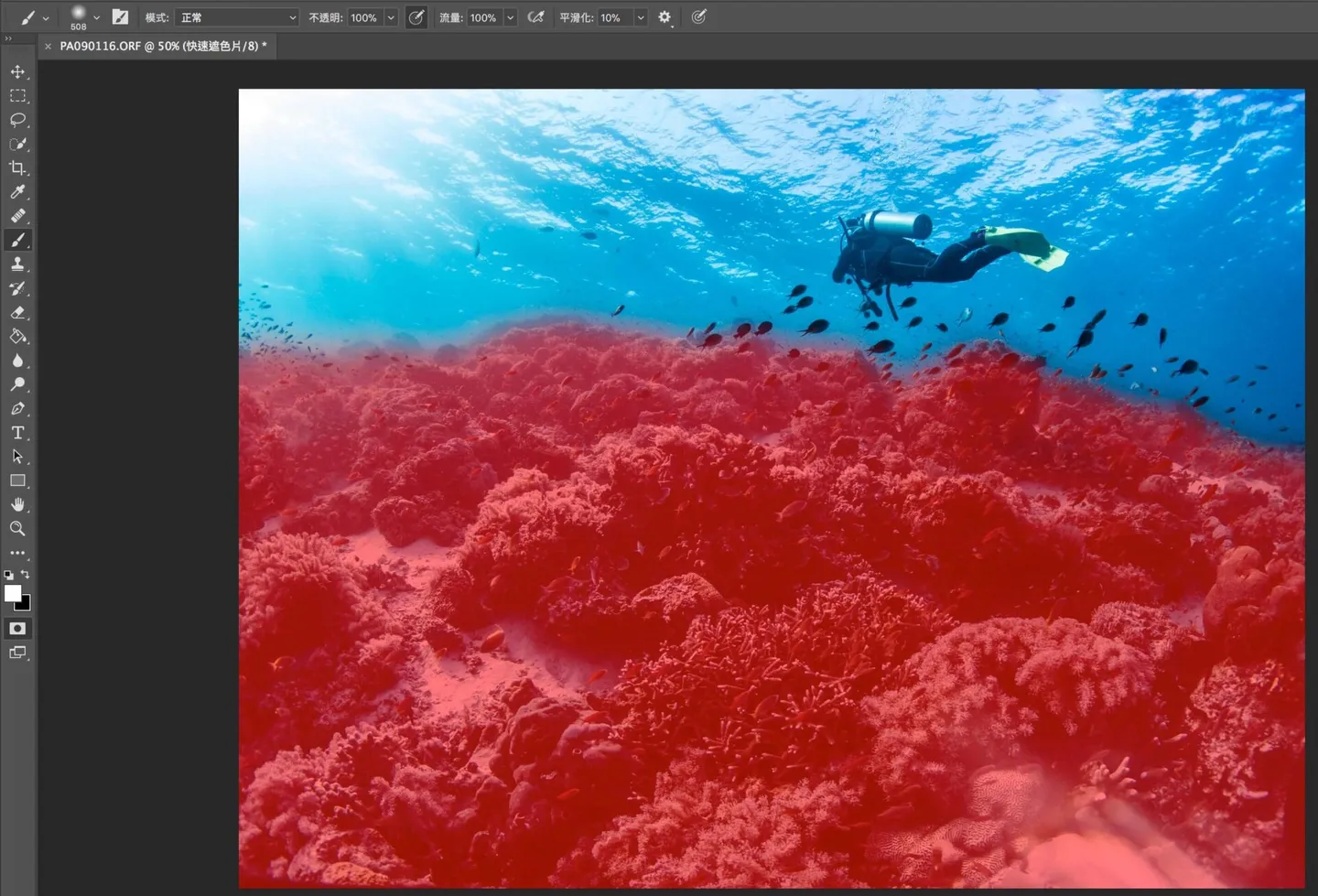
5. Duplicate the Layer
At this point, it's important to select any one of the four selection tools,
then right-click and choose Inverse Selection (this shifts the active selection to the water area, leaving the coral untouched),
then click Layer via Copy to duplicate the selection to a new layer.
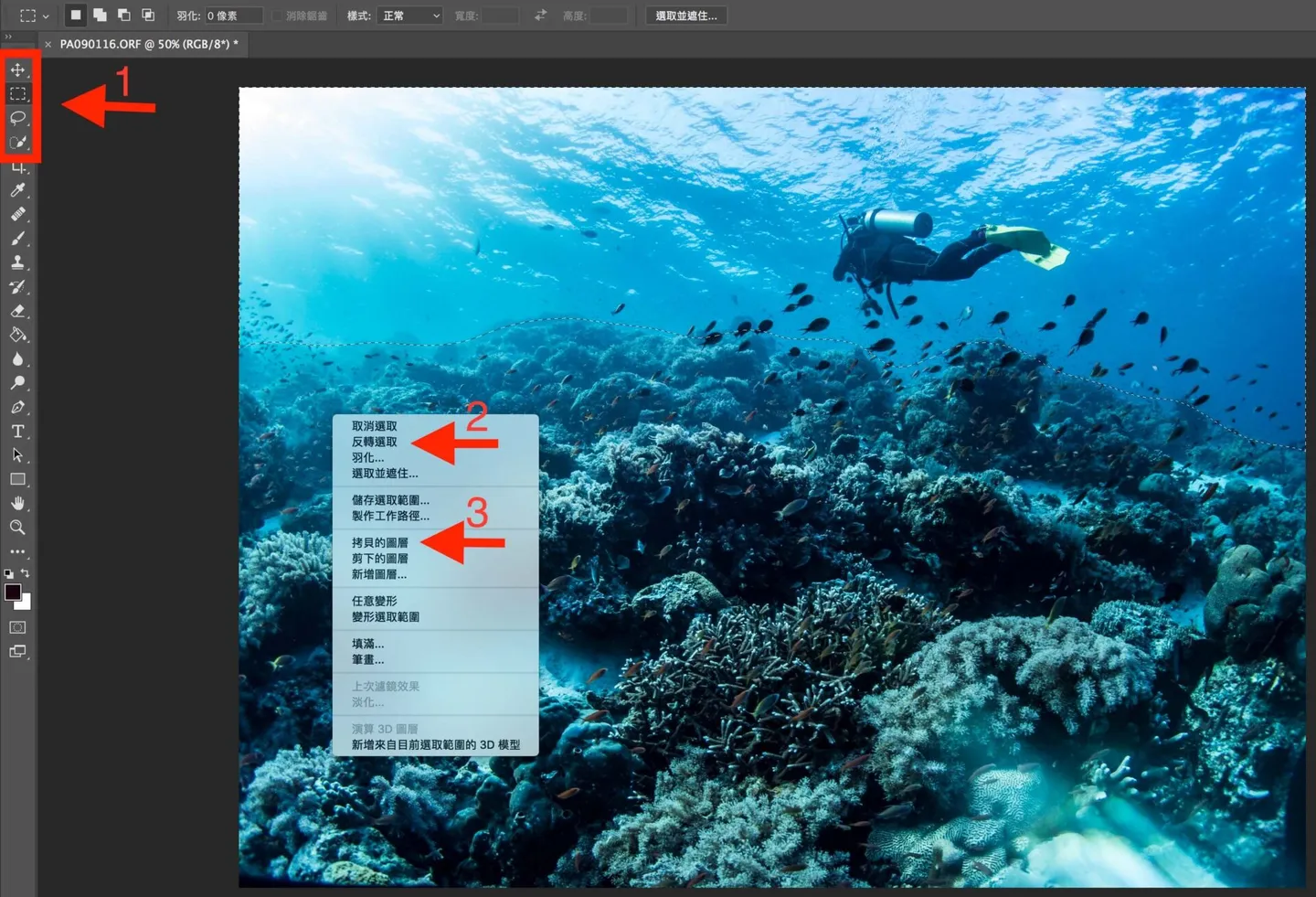
Layer 1 will now appear, showing only the area of the photo you want to adjust.
You can then use these adjustment tools to edit the photo:
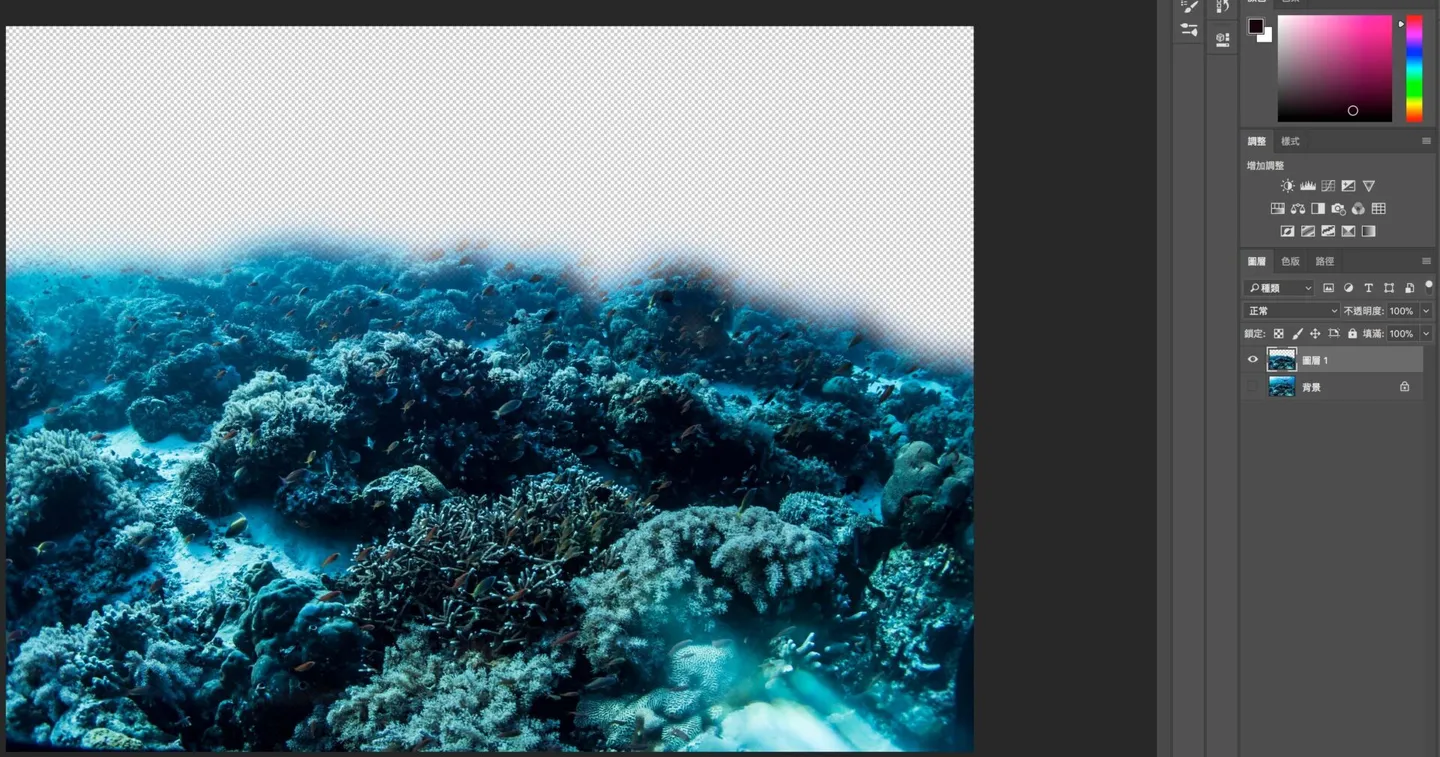
When making adjustments, remember to click the Clip to Layer icon in the lower-left corner of the Adjustments panel — this ensures the changes apply only to Layer 1.
If you don't clip it, the adjustment will affect the entire photo, which defeats the purpose of isolating the coral area.
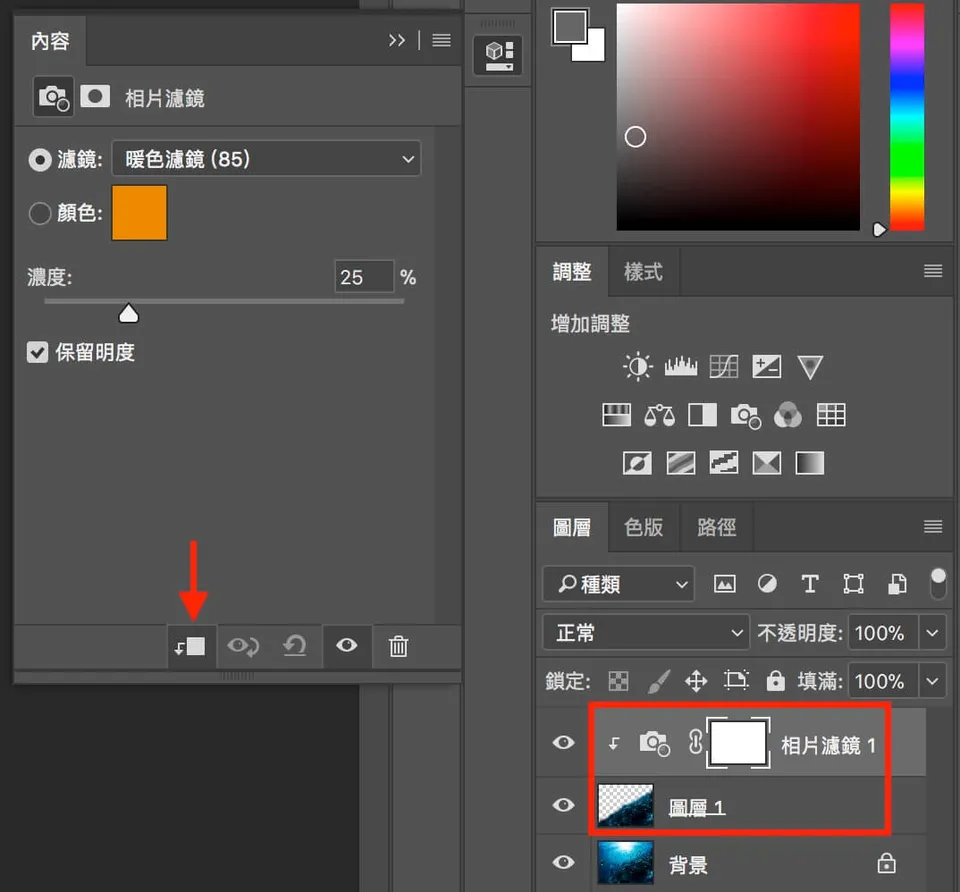
6. Adjust the Colour Tone
As for what adjustments to make, that's entirely up to personal taste.
There's no set rule or fixed order — I usually just adjust as I go and see what suits each photo.
Personally, I use the mask in two passes.
My goal is to restore the colour of the coral,
but without having the light rays coming through the water above also shift to an orange-red tone.
So I first adjust the coral in the lower portion of the frame — I prefer saturated colours, so the restored hues tend to be quite vivid.
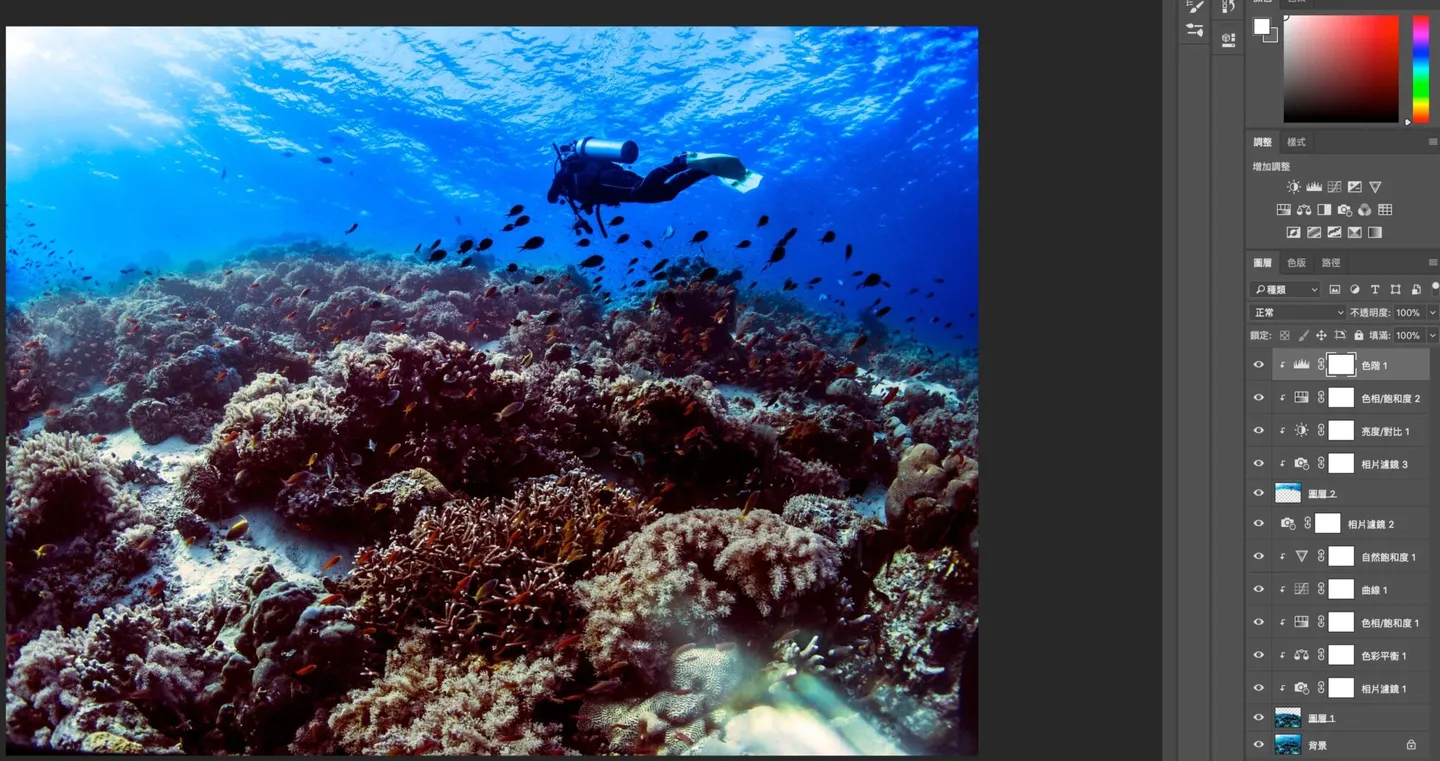
For Layer 2, I then adjust the water colour to push it deeper into a richer blue, to give the illusion of excellent visibility (laughs).
The light shafts in the upper-left are also spared from the global adjustment, so they don't turn orange or red.
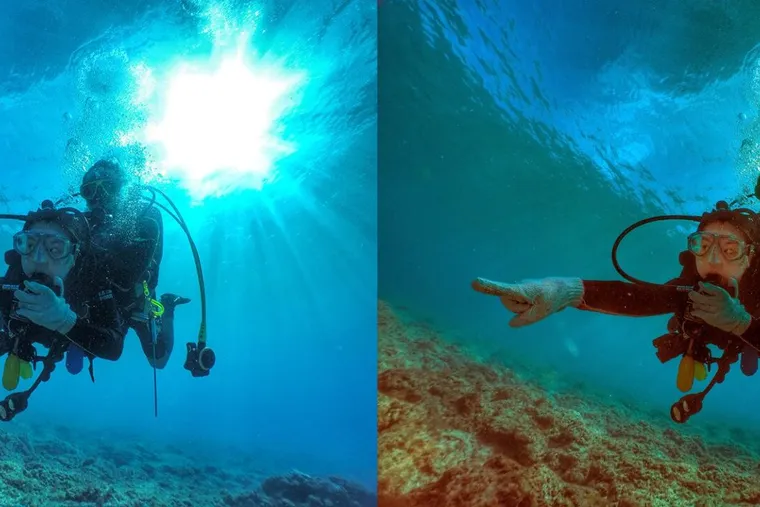
This photo below is an example of what I used to produce before I started using masks — notice how the light rays above the water have a yellowish cast.
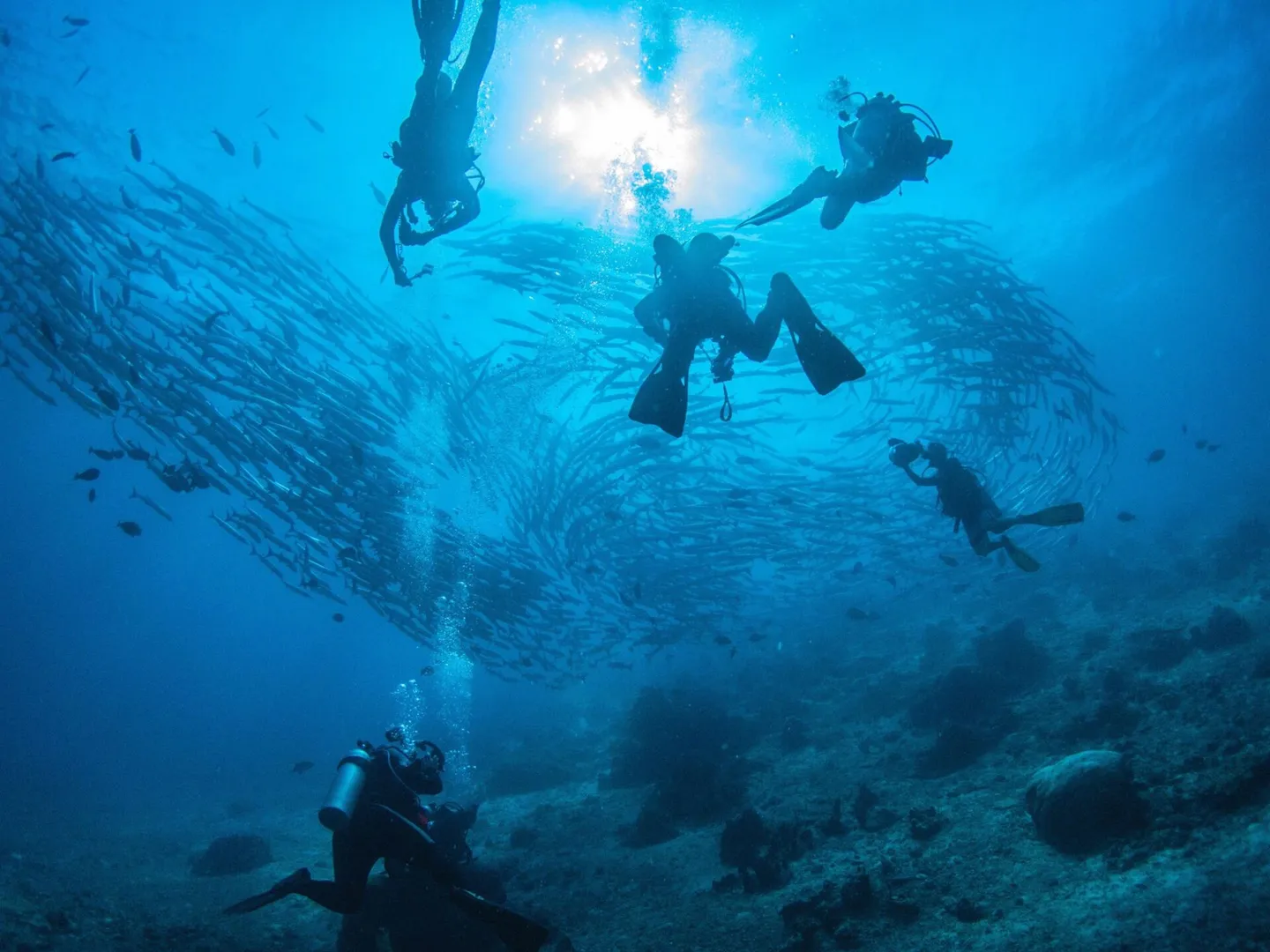
Image sourced from the internet. If there is any copyright issue, please let us know. Thank you!
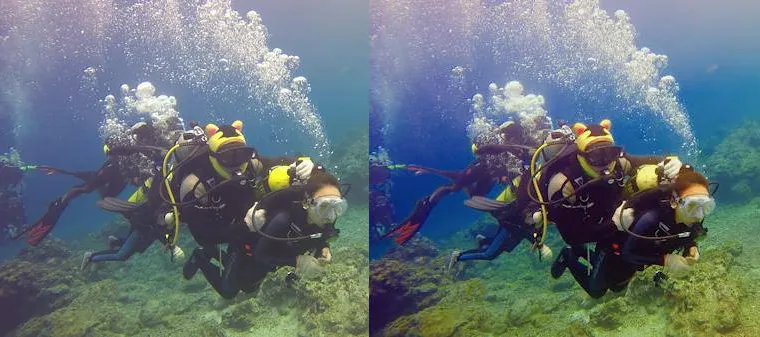
The final result will look like the image below. That's my non-expert tutorial in a nutshell.
There is, of course, still room for improvement — for instance, I still struggle to handle the light caustics at the bottom of the frame particularly well.
Even so, this method is the best way I've found to restore colour in photos when shooting on a budget, without a strobe or video light. I hope it's helpful to everyone.